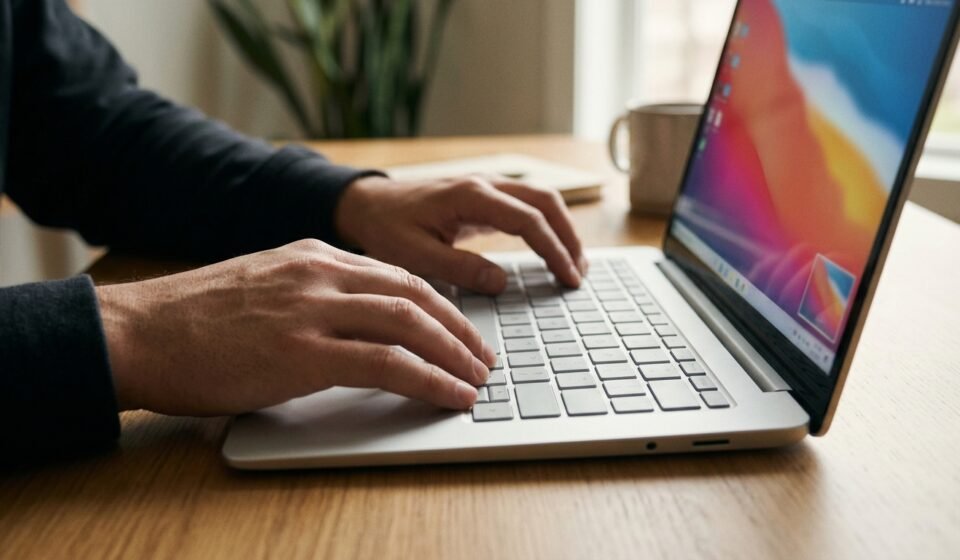

Taking a screenshot on an HP laptop is simple once you know which keyboard shortcut to use. Whether you want to capture the entire screen, save an open window, or select a specific area, Windows provides several built-in options.
You can use keyboard shortcuts, the Snipping Tool, or Microsoft Paint to capture and save images without installing additional software. This guide explains how to take a screenshot on an HP laptop running Windows 10 or Windows 11, where screenshots are stored, and what to do if the Print Screen key does not work.
What Is the Easiest Way to Take a Screenshot on an HP Laptop?
The easiest method for capturing part of your screen is Windows + Shift + S. It opens the screenshot selection interface, allowing you to choose the area you want to capture.
Here are the most useful HP laptop screenshot shortcuts:
| Keyboard Shortcut | What It Does |
|---|---|
| Windows + Shift + S | Captures a selected screen area |
| Windows + PrtSc | Captures the entire screen and saves it automatically |
| PrtSc | Copies the screen to the clipboard or opens screen snipping, depending on settings |
| Alt + PrtSc | Copies the active window to the clipboard |
| Fn + PrtSc | Activates Print Screen on some HP keyboards |
| Windows + Fn + Spacebar | Alternative screenshot shortcut on supported devices without a dedicated PrtSc key |
The exact behavior can vary depending on your HP laptop keyboard and Windows settings.
How to Take a Screenshot on an HP Laptop Using Keyboard Shortcuts
Keyboard shortcuts are usually the fastest way to capture your screen. Choose the method that matches what you want to save.
1. Use Windows + Shift + S to Capture Part of the Screen
If you only need a particular section of your display, this shortcut is one of the most convenient options.
Follow these steps:
- Open the screen or application you want to capture.
- Press Windows + Shift + S together.
- Wait for the screen to become slightly dim.
- Select the area you want to capture using your mouse or touchpad.
- Release the selection to capture the image.
- Paste the screenshot into Paint, Word, or another compatible application using Ctrl + V.
- Save the image if you want to keep it as a file.
Windows also provides different capture modes through the Snipping Tool interface, including rectangular, freeform, window, and full-screen capture.
This method is useful when you want to capture a paragraph, an error message, a particular application section, or a small part of a webpage.
2. Use Windows + PrtSc to Save the Full Screen Automatically
If you want to capture everything visible on your display, use the Windows + PrtSc shortcut.
Here is how:
- Open the content you want to capture.
- Press Windows + PrtSc at the same time.
- Your screen may briefly dim to indicate that the screenshot has been taken.
- Open File Explorer.
- Navigate to Pictures > Screenshots.
- Find your newly captured image.
Windows automatically saves the screenshot as an image file in the Screenshots folder when this shortcut works as expected.
This option is especially helpful when you need to capture the entire desktop without opening another application.
3. Use PrtSc to Copy the Entire Screen
The Print Screen key, commonly labeled PrtSc, PrtScn, or something similar, is available on many HP laptop keyboards.
To use it:
- Display the content you want to capture.
- Press the PrtSc key.
- Open Microsoft Paint or another application that supports image pasting.
- Press Ctrl + V.
- Select File and choose Save As.
- Choose your preferred location and image format.
One important detail: pressing PrtSc does not always create a saved image file. Depending on your Windows settings, it may copy the screenshot to the clipboard or open the screen-snipping interface.
If you cannot find a screenshot in your Pictures folder after pressing PrtSc, check the clipboard by opening Paint and pressing Ctrl + V.
4. Use Alt + PrtSc to Capture One Window
Sometimes you do not need the entire desktop. For example, you might want to capture only a browser window, a settings panel, or a particular application.
The Alt + PrtSc shortcut captures the currently active window.
Follow these steps:
- Open the application you want to capture.
- Click its window to make it active.
- Press Alt + PrtSc.
- Open Microsoft Paint.
- Press Ctrl + V to paste the captured window.
- Save the image to your preferred folder.
This method is useful for tutorials, work documents, technical support requests, and sharing application errors without including unrelated desktop content.
5. Use Fn + PrtSc on HP Laptops That Require the Fn Key
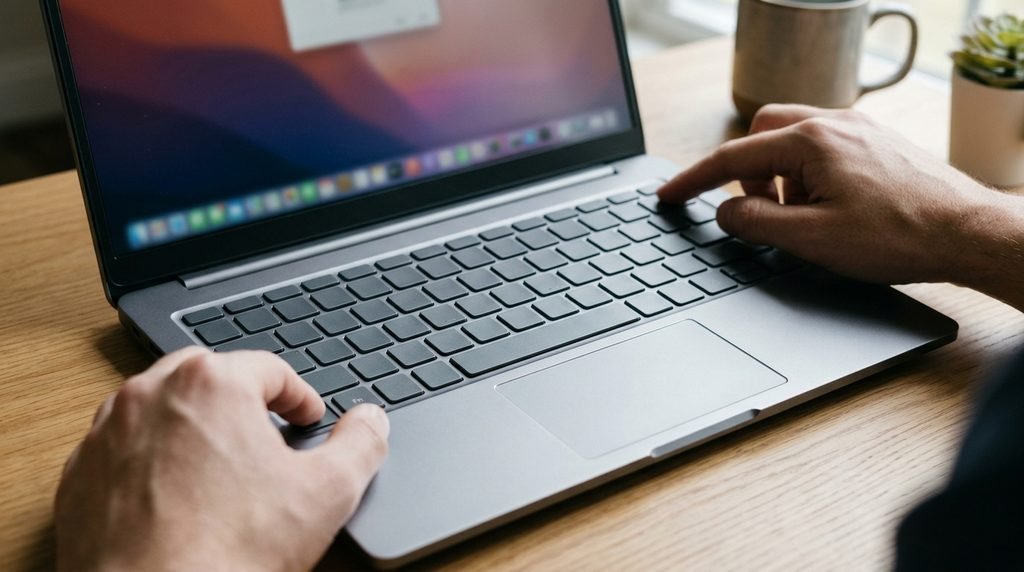
Some HP laptops use function keys for multiple purposes. On these keyboards, the Print Screen function may require the Fn key.
If pressing PrtSc alone does not work, try the following:
- Locate the PrtSc key on your keyboard.
- Hold down the Fn key.
- Press PrtSc while holding Fn.
- Open Paint or another compatible application.
- Press Ctrl + V to check whether the screenshot was copied.
The required combination depends on the keyboard design and function-key settings of your HP model. If the first combination does not work, consult your laptop’s keyboard documentation.
How to Take a Screenshot Using the Snipping Tool
The Snipping Tool is a built-in Windows application that lets you capture selected parts of your display or the entire screen.
It is particularly useful when you want more control over the screenshot.
Steps to Use the Snipping Tool
- Open the Windows Start menu.
- Type Snipping Tool in the search box.
- Select the application.
- Click the New button.
- Choose the capture mode you need.
- Select the screen area or window you want to capture.
- Review the screenshot in the Snipping Tool window.
- Use the available editing options if necessary.
- Click the Save button and choose where to store the image.
You can also press Windows + Shift + S to open the screen capture interface directly.
The available capture modes include:
- Rectangular Snip: Select a rectangular portion of the display.
- Freeform Snip: Draw an irregular shape around the content.
- Window Snip: Capture a particular application window.
- Full-Screen Snip: Capture the entire display.
Some versions of the Snipping Tool also provide recording and additional editing features. The available options depend on your Windows version and application updates.
Where Are Screenshots Saved on an HP Laptop?
The save location depends on the screenshot method you use.
If you press Windows + PrtSc, Windows normally saves the image in:
Pictures > Screenshots
However, other methods may only copy the screenshot to the clipboard instead of saving it automatically.
Here are the main locations and behaviors to understand:
- Pictures > Screenshots: The default location for screenshots captured using Windows + PrtSc.
- Clipboard: Temporary storage used by methods such as PrtSc and Alt + PrtSc.
- Snipping Tool: Allows you to choose where to save the captured image.
- Microsoft Paint: Lets you paste the screenshot and save it manually.
To save a clipboard screenshot, open Paint, press Ctrl + V, select File, and choose Save As. You can then select a folder and save the image as PNG or JPEG.
If your screenshots are not appearing in the expected folder, check whether your Pictures folder has been redirected or synchronized through a cloud storage service such as OneDrive.
How to Take a Screenshot on an HP Laptop Without the Print Screen Key
Some compact keyboards do not have a dedicated Print Screen key. You can still capture screenshots using Windows tools.
Method 1: Use Windows + Shift + S
Press Windows + Shift + S to open the screen capture interface. Select the required area and paste or save the screenshot.
Method 2: Open Snipping Tool Manually
Search for Snipping Tool in the Start menu, open the application, and click New to capture your screen.
Method 3: Try Windows + Fn + Spacebar
On supported devices without a dedicated Print Screen key, Microsoft documents Windows + Fn + Spacebar as an alternative screenshot shortcut.
If this combination does not work on your particular HP laptop, use the Snipping Tool or check the keyboard instructions for your model.
How to Take a Screenshot on HP Windows 10 vs. Windows 11
Most basic screenshot shortcuts work across Windows 10 and Windows 11. However, the appearance and behavior of screenshot tools can differ.
| Feature | Windows 10 | Windows 11 |
|---|---|---|
| Windows + Shift + S | Opens screen capture selection | Opens the Snipping Tool capture interface |
| Windows + PrtSc | Saves a full-screen screenshot | Saves a full-screen screenshot |
| PrtSc | Behavior depends on keyboard and settings | Can be configured to open screen snipping |
| Snipping Tool | Available, with version-dependent features | Updated interface and additional features |
| Clipboard | Supports copying screenshots | Supports copying screenshots and clipboard history |
In Windows 11, you can check the Print Screen behavior through Settings:
- Open Settings.
- Select Accessibility.
- Choose Keyboard.
- Find the option for using the Print Screen key to open screen capture.
- Turn the setting on or off according to your preference.
This setting is helpful if pressing PrtSc opens the screenshot selection interface when you would rather use another capture method.
Why Is the Screenshot Button Not Working on My HP Laptop?
If your HP laptop does not respond to a screenshot shortcut, several issues could be responsible.
Check the Fn Key
Some HP keyboards require you to hold Fn while pressing PrtSc. Try Fn + PrtSc if the regular shortcut does not work.
Check the Print Screen Setting
On Windows 11, the Print Screen key may be configured to open the Snipping Tool capture interface. Review the keyboard settings under Accessibility if its behavior is unexpected.
Open Snipping Tool Manually
If the keyboard shortcut fails, search for Snipping Tool in the Start menu. This helps determine whether the issue is related to the keyboard shortcut rather than the capture application.
Check the Clipboard
A screenshot may have been copied successfully without being saved as a file. Open Paint and press Ctrl + V to check whether the captured image is available.
Restart Your Laptop
Temporary Windows or keyboard issues can sometimes interfere with shortcuts. Save your work and restart the laptop before testing again.
Check for Windows Updates
Open Windows Settings and check for available updates. Keeping Windows and its built-in applications updated can help resolve software-related problems.
If the Print Screen key still does not work, inspect the keyboard for physical damage or consult HP support for model-specific troubleshooting.
Can You Take a Scrolling Screenshot on an HP Laptop?
A scrolling screenshot captures content that extends beyond the visible screen, such as a long webpage or document.
Windows’ built-in Snipping Tool does not provide a universal scrolling-page capture feature. However, you may be able to use a browser’s built-in full-page capture option or a dedicated screenshot application.
For example, some browsers and browser extensions support capturing an entire webpage rather than only the visible section.
If you use a third-party application, download it from a trusted source and review its permissions before installing it.
How to Take a Screenshot on an HP Chromebook
Not every HP laptop runs Windows. HP also manufactures Chromebooks, which use ChromeOS and have different keyboard shortcuts.
On supported Chromebooks:
- Press Ctrl + Show Windows to capture the screen.
- Press Ctrl + Shift + Show Windows to open the screen capture interface.
The Show Windows key is generally represented by a rectangle with lines beside it. Newer Chromebook keyboards may use a dedicated screenshot key instead.
Screenshots are normally stored in the Downloads folder, although the selected save location can vary.
Frequently Asked Questions
1. What Is the Screenshot Shortcut on an HP Laptop?
Windows + Shift + S is a convenient shortcut for capturing a selected area. Windows + PrtSc captures the entire screen and normally saves it automatically in the Pictures > Screenshots folder.
2. How Do I Take a Screenshot on an HP Laptop Without a Mouse?
Press Windows + Shift + S and use the keyboard to navigate the capture interface where supported. You can also use Windows + PrtSc to capture the entire screen without selecting an area.
3. Why Is My HP Laptop Screenshot Not Saving?
Some screenshot shortcuts copy images to the clipboard instead of saving them as files. Open Microsoft Paint, press Ctrl + V, and use Save As to store the screenshot. Also check the Pictures > Screenshots folder when using Windows + PrtSc.
4. Can I Save an HP Laptop Screenshot as a JPG or PNG?
Yes. Capture the screenshot, paste it into Paint, and select Save As. Choose PNG or JPEG from the available file formats, select a destination folder, and save your image.
5. Can I Take a Screenshot on an HP Laptop Without Using the Keyboard?
Yes. Open the Start menu, search for Snipping Tool, and launch the application. Click New, select the area you want to capture, and save the resulting image.
Conclusion
Taking screenshots on an HP laptop is easy with Windows keyboard shortcuts and the built-in Snipping Tool. Choose Windows + Shift + S for selected areas or Windows + PrtSc for full-screen captures. If a shortcut fails, check your Fn key, keyboard settings, and clipboard. Understanding these options makes capturing, saving, and sharing screenshots much simpler.
Related Post