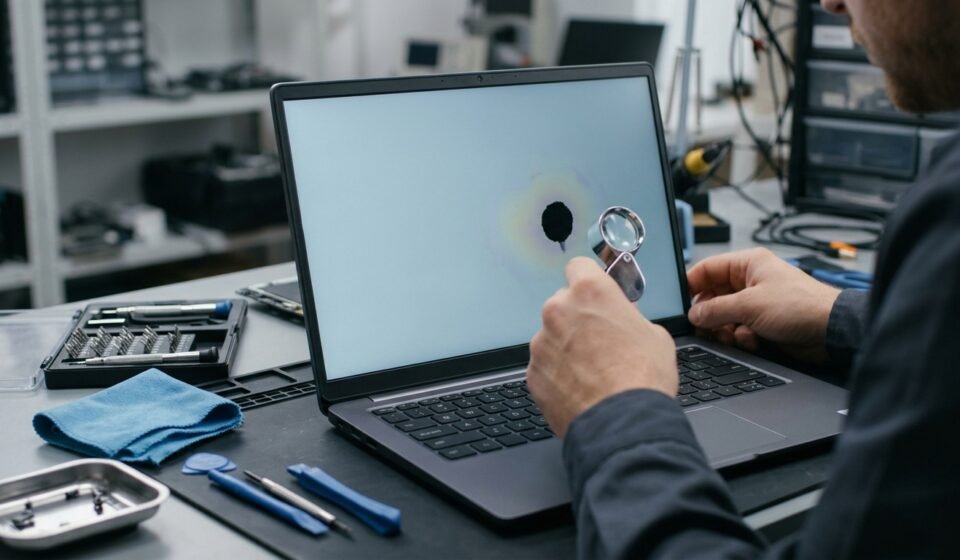

A black spot on a laptop screen can be worrying, especially when it appears suddenly or starts getting larger. Sometimes the mark is caused by a dead pixel or surface dirt, but it can also indicate pressure damage, a cracked LCD panel, or an internal display problem. Identifying the cause is important because some issues can be checked at home, while physical screen damage usually requires professional repair.
This guide explains why black spots appear on laptop screens, how to identify the problem, which solutions are safe, and when replacing the display may be necessary.
Why Is There a Black Spot on Your Laptop Screen?
A black spot usually indicates that part of the display is not showing an image correctly. The cause depends on its size, shape, location, and appearance.
Here are the most common reasons.
1. Dead Pixels
A dead pixel is a tiny display element that stops producing the expected light. It may appear as a small black dot that remains in the same location regardless of what is displayed.
Laptop screens contain millions of pixels, and each pixel uses red, green, and blue subpixels to create different colors. When a pixel or its subpixels fail, a small visible defect can appear.
Dead pixels are generally limited to individual points rather than large, irregular patches. A single dead pixel usually does not spread across the display.
2. Pressure Damage
Pressure damage is another common cause of dark areas on laptop screens. It happens when excessive force affects the display panel.
Possible causes include:
- Placing heavy objects on a closed laptop.
- Carrying a laptop in an overcrowded backpack.
- Pressing the screen while cleaning it.
- Closing the lid with an object between the keyboard and display.
- Gripping the screen too firmly when opening or closing the laptop.
Pressure damage can create a dark, cloudy, or irregular patch. Depending on the severity, the affected area may become more noticeable over time.
3. Cracked Internal LCD Panel
A laptop screen can develop internal cracks even when its outer glass or surface looks relatively normal.
An internal crack may appear as a dark patch, black area, colored lines, or an irregular pattern. Sometimes the damaged area resembles spilled ink spreading across the screen.
This type of damage is generally physical rather than software-related. Restarting the laptop or updating its graphics driver will not repair a broken display panel.
4. Dirt or Stains on the Screen
Not every black mark comes from internal display damage. Dust, grease, fingerprints, and other surface contamination can sometimes look like black spots.
These marks are usually visible on the outside of the display and may change or disappear after proper cleaning.
Before assuming that your screen is damaged, inspect the surface under good lighting.
5. Backlight Problems
A backlight problem can create dark or uneven areas on certain laptop displays.
On LCD screens, the backlight provides illumination behind the pixels. If part of the lighting system becomes uneven or fails, the screen may appear darker in a particular region.
A backlight shadow usually looks more like a dim or cloudy area than a sharply defined black dot.
Types of Black Spots on Laptop Screens
Understanding the appearance of a mark can help you identify its likely cause.
| Type of problem | Common appearance | Likely explanation |
|---|---|---|
| Dead pixel | Tiny black dot | Pixel or subpixel failure |
| Pressure damage | Dark or cloudy patch | Force applied to the display |
| Internal LCD crack | Irregular black area or ink-like pattern | Damaged display layers |
| Surface dirt | Small removable mark | Dust, grease, or contamination |
| Backlight issue | Uneven dark shading | Display illumination problem |
These descriptions are diagnostic clues, not guaranteed diagnoses. Different display faults can sometimes produce similar symptoms.
How to Identify the Cause of a Black Spot

Before paying for repairs, perform a few safe checks. These steps can help determine whether the problem comes from the display surface, software, or internal hardware.
1. Clean the Screen Carefully
Start by checking whether the mark is sitting on the surface.
- Turn off the laptop.
- Disconnect the charger.
- Use a clean microfiber cloth.
- If necessary, slightly dampen the cloth with an appropriate screen-cleaning solution.
- Wipe gently without applying pressure.
- Allow the display to dry before turning the laptop back on.
Never spray liquid directly onto the screen. Avoid household glass cleaners unless the laptop manufacturer specifically approves them.
If the mark remains unchanged, it may be inside the display rather than on its surface.
2. Check Different Background Colors
A simple display test can help you understand the defect.
Open images or full-screen backgrounds in different colors, such as:
- White
- Black
- Red
- Green
- Blue
Observe whether the spot remains visible and whether its appearance changes.
A tiny fixed black dot may indicate a dead pixel. A larger irregular patch that appears across different backgrounds may suggest physical panel damage.
3. Take a Screenshot
A screenshot can help distinguish a software-rendered problem from a physical display defect.
Capture the screen while the black mark is visible, then open the screenshot on another device or display.
- If the mark appears in the screenshot, investigate software, graphics, or image-related problems.
- If the mark does not appear in the screenshot, the built-in display or its connection may be responsible.
This is a useful clue, but it does not identify the exact hardware fault.
4. Connect an External Monitor
If you have access to another monitor or television, connect it to your laptop using HDMI, USB-C, or another supported video connection.
Check whether the same black spot appears on the external display.
If the external monitor shows a normal image while the laptop screen has a dark patch, the built-in display assembly is a likely source of the problem.
If both displays show the same visual defect, investigate the graphics driver, software, or graphics hardware.
How to Fix a Black Spot on a Laptop Screen
The correct solution depends on what caused the mark. Some problems can be checked without professional assistance, while physical panel damage generally requires repair or replacement.
1. Remove Surface Dirt
If the mark is caused by fingerprints, dust, or grease, careful cleaning may solve the problem.
Use a microfiber cloth and a manufacturer-approved cleaning method. Avoid pressing hard against the display because excessive pressure can damage its internal layers.
If cleaning does not change the mark, stop repeating the process and investigate other causes.
2. Restart the Laptop
A restart can help when the apparent defect is caused by a temporary graphics or display issue.
Save your work, restart the device, and check whether the mark remains.
If it disappears, the problem may have been software-related. If it stays in exactly the same physical location, hardware damage becomes more likely.
3. Update the Graphics Driver
Outdated or malfunctioning graphics drivers can cause visual problems, although they do not repair physical damage to an LCD panel.
On Windows:
- Open Device Manager.
- Expand Display adapters.
- Identify your graphics device.
- Check for an available driver update through Windows Update or the laptop manufacturer’s support website.
- Restart the laptop after installation.
Use drivers intended for your exact laptop model. Avoid downloading display drivers from unfamiliar websites.
4. Check for Display Hardware Problems
If the black spot remains visible after cleaning and restarting, the display may need professional inspection.
A technician can examine the LCD panel, display cable, backlight system, and other components to identify the fault.
Do not attempt to press, massage, or bend the affected area. These methods cannot reliably repair internal panel damage and may make it worse.
5. Replace the Damaged Screen
A replacement display is often necessary when the LCD panel has an internal crack or significant pressure damage.
The replacement should match the laptop’s model and display specifications, including:
- Screen size
- Resolution
- Connector type
- Refresh rate
- Panel technology
- Mounting and compatibility requirements
Using an incompatible screen can create additional problems. Check the laptop’s exact model number before ordering replacement parts.
Can a Black Spot on a Laptop Screen Spread?
Yes, some black spots can become larger, particularly when they result from physical damage to the display panel.
A small pressure-damaged area may remain stable, but internal cracks can develop into larger dark patches. Additional pressure, bending, or physical impact may worsen the damage.
Dead pixels are different. A single dead pixel generally remains a small defect and does not automatically spread across the screen.
Watch for these warning signs:
- The black patch becomes larger.
- Dark areas develop irregular edges.
- Colored lines appear around the spot.
- Flickering begins near the damaged region.
- More dark patches appear.
- Part of the display stops showing an image.
If these symptoms develop, avoid applying pressure and arrange a professional inspection.
When Does a Laptop Screen Need Replacement?
Not every black spot requires an immediate display replacement. The decision depends on the cause, size, severity, and impact on everyday use.
A screen replacement may be necessary when:
- The LCD panel has an internal crack.
- A large dark patch blocks important content.
- Pressure damage continues to worsen.
- Multiple display lines or black areas appear.
- The screen becomes difficult to use.
- A technician confirms that the panel itself has failed.
A tiny isolated dead pixel may not justify replacing an otherwise functional display. However, several defective pixels or a distracting defect may make replacement worthwhile.
What Does Laptop Screen Replacement Cost?
The cost depends on the laptop model, screen specifications, part availability, and technician charges.
A basic display panel may be less expensive than a high-resolution touchscreen or high-refresh-rate gaming display. Premium OLED panels can also cost more than standard LCD replacements.
Before approving a repair, ask for:
- The replacement panel’s price.
- Labor charges.
- Warranty on the replacement part.
- Compatibility confirmation.
- Total repair cost.
Compare the repair estimate with the laptop’s current value. If the replacement is unusually expensive, repairing the existing laptop may not be the most economical choice.
Does Laptop Warranty Cover Black Spots?
Warranty coverage depends on the manufacturer’s policy and the cause of the defect.
A manufacturing-related pixel problem may qualify for support under certain conditions. However, accidental damage, pressure marks, liquid damage, and cracked displays may be excluded from standard warranties.
Some manufacturers also use specific pixel policies that determine how many defective pixels qualify for replacement.
Before paying for repairs, check your laptop’s warranty documentation and contact the manufacturer or authorized service center.
If the laptop is relatively new, take clear photographs of the affected area and record when you first noticed the problem. This information can help when requesting warranty assistance.
How to Prevent Black Spots on a Laptop Screen
Although some display defects happen unexpectedly, proper handling can reduce the risk of physical damage.
Avoid putting pressure on the display: Never press the screen with your fingers or place heavy objects on a closed laptop.
Keep the keyboard area clear: Check for pens, headphones, USB drives, and other objects before closing the lid.
Use a protective laptop bag: Choose a bag with sufficient padding and avoid overcrowding it with heavy items.
Clean the screen correctly: Use a microfiber cloth and an approved cleaning method. Do not scrub or press hard.
Open and close the lid carefully: Hold the laptop from its base when possible instead of pulling or twisting the display from one corner.
Store the laptop safely: Avoid placing it beneath books, equipment, or other heavy objects.
Protect it during travel: Secure the laptop so that it cannot bend or experience repeated pressure inside a backpack.
These habits help protect the display from unnecessary physical stress and can reduce the likelihood of pressure-related damage.
Frequently Asked Questions
1. Why is there a small black dot on my laptop screen?
A small black dot may be caused by a dead pixel, a damaged subpixel, or a tiny area of display damage. If it stays in the same position across different backgrounds, a pixel-related defect is possible.
2. Can a black spot on a laptop screen disappear?
A surface mark may disappear after careful cleaning, and some temporary software-related visual problems may resolve after restarting. However, a dead pixel or physically damaged LCD panel generally will not repair itself.
3. Can I fix a black spot by rubbing the laptop screen?
No. Rubbing or massaging the affected area is not a recommended repair method. It can apply additional pressure to the display and potentially worsen internal damage. Use gentle cleaning only when dealing with surface dirt.
4. Does a black spot mean my laptop screen is broken?
Not necessarily. A small dead pixel or surface stain does not always mean the entire screen is damaged. However, a growing dark patch, internal crack, or irregular black area may indicate a damaged display panel that needs professional inspection.
5. Should I replace my laptop screen if it has a black spot?
Replacement depends on the size and cause of the defect. A single tiny pixel may not require a new display, but a spreading black patch or cracked LCD panel may need replacement. Get a repair estimate before making the decision.
Conclusion
A black spot on a laptop screen can result from dead pixels, pressure damage, internal cracks, or surface dirt. Identify the cause before attempting repairs, and never press or rub the affected area. Minor surface marks may be cleaned safely, while damaged display panels often require professional replacement. Check warranty coverage before paying for repairs.
Related Post