
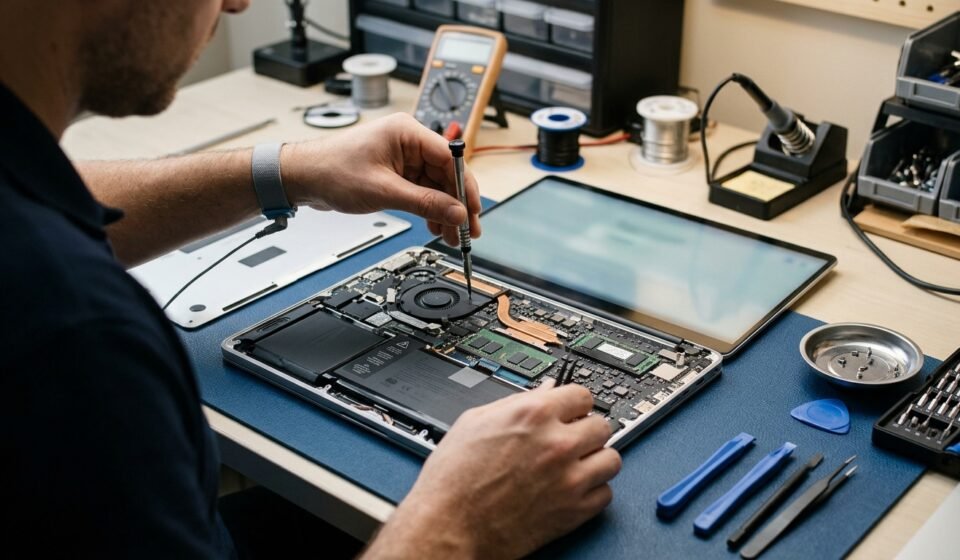

HP laptops are widely used for education, business, gaming, and everyday activities. However, like any electronic device, they can develop problems involving batteries, screens, keyboards, charging ports, software, or internal hardware. When something stops working, finding the right HP laptop repair solution can help restore performance and prevent unnecessary replacement expenses.
Some problems can be resolved at home through basic troubleshooting, while others require professional diagnosis and replacement parts. Understanding the cause of a problem, checking warranty eligibility, and comparing repair options can help you make a better decision.
This guide explains common HP laptop problems, troubleshooting methods, repair services, warranty coverage, estimated costs, and situations where replacing a laptop may be more practical.
What Should You Do Before Repairing an HP Laptop?
Before opening your laptop or contacting a technician, take a few basic steps to understand the problem.
Start by identifying when the issue occurs. For example, determine whether the laptop fails to start, shuts down unexpectedly, displays an error message, or works slowly.
Follow these initial checks:
- Inspect the charging adapter and power cable for visible damage.
- Check whether the charging indicator turns on.
- Disconnect unnecessary external devices.
- Restart the laptop if it is safe to do so.
- Note any unusual sounds, overheating, or error messages.
- Identify your HP laptop model and product number.
- Back up important files if the computer is still accessible.
If the laptop has a swollen battery, liquid damage, a burning smell, or unusual electrical behavior, stop using it and seek professional assistance. Do not attempt to open or repair a damaged battery yourself.
These initial observations can help identify whether the issue is related to software, power, or internal hardware.
Common HP Laptop Problems and Their Solutions
HP laptops can experience different technical issues depending on their age, model, usage, and maintenance.
Understanding the symptoms can help you decide whether basic troubleshooting is appropriate or professional repair is necessary.
HP Laptop Won’t Turn On
An HP laptop that does not power on may have a drained battery, defective charger, damaged charging port, or internal hardware problem.
Try these basic steps:
- Disconnect the charging adapter.
- Remove connected USB devices and other accessories.
- Check the adapter and cable for visible damage.
- Connect the charger to a working electrical outlet.
- Allow the laptop to charge for a short period.
- Attempt to turn it on again.
For supported models, an HP power reset may help resolve certain startup problems. Follow the instructions for your specific laptop rather than assuming every model uses the same procedure.
If the charging light remains off or the laptop shows no response, the power adapter, battery, charging circuit, or motherboard may require professional inspection.
HP Laptop Black Screen
A black screen can occur even when the laptop is running.
Possible causes include:
- Display connection problems.
- Graphics driver issues.
- Screen failure.
- Memory problems.
- BIOS or startup errors.
First, check whether the power indicator and keyboard lights are working. You can also connect an external monitor to determine whether the laptop is producing a video signal.
If the external monitor works but the built-in screen remains black, the display panel or its connection may need inspection.
Avoid replacing the screen before confirming the actual cause.
HP Laptop Battery Not Charging
Battery problems can reduce portability and make a laptop difficult to use.
Common causes include an aging battery, damaged charging cable, faulty power adapter, incorrect power settings, or charging-port damage.
Try the following:
- Inspect the charging cable and adapter.
- Test a compatible, properly rated charger.
- Check the battery status in Windows.
- Review battery information through HP diagnostics.
- Restart the laptop and check whether charging resumes.
If the battery is swollen, do not continue charging or using the laptop. Arrange professional battery replacement.
HP Laptop Overheating
Overheating can cause slow performance, unexpected shutdowns, and excessive fan noise.
Dust accumulation, blocked ventilation, heavy workloads, or cooling-system problems may contribute to the issue.
To reduce overheating:
- Keep the laptop on a hard, flat surface.
- Avoid blocking its ventilation openings.
- Close unnecessary applications.
- Keep the operating system and drivers updated.
- Arrange internal cleaning when dust accumulation becomes significant.
If the laptop continues overheating, a technician may need to inspect its cooling fan, heatsink, and thermal interface material.
HP Laptop Keyboard or Touchpad Not Working
Keyboard and touchpad problems can result from software errors, incorrect settings, damaged connections, or physical component failure.
Start by restarting Windows and checking the keyboard and touchpad settings.
If possible, connect an external USB keyboard or mouse to determine whether the problem is limited to the built-in components.
If individual keys do not respond or the touchpad remains inactive after troubleshooting, professional inspection may be necessary.
Liquid spills require particular caution because moisture can damage internal circuits even when the laptop initially appears functional.
How to Diagnose HP Laptop Hardware Problems
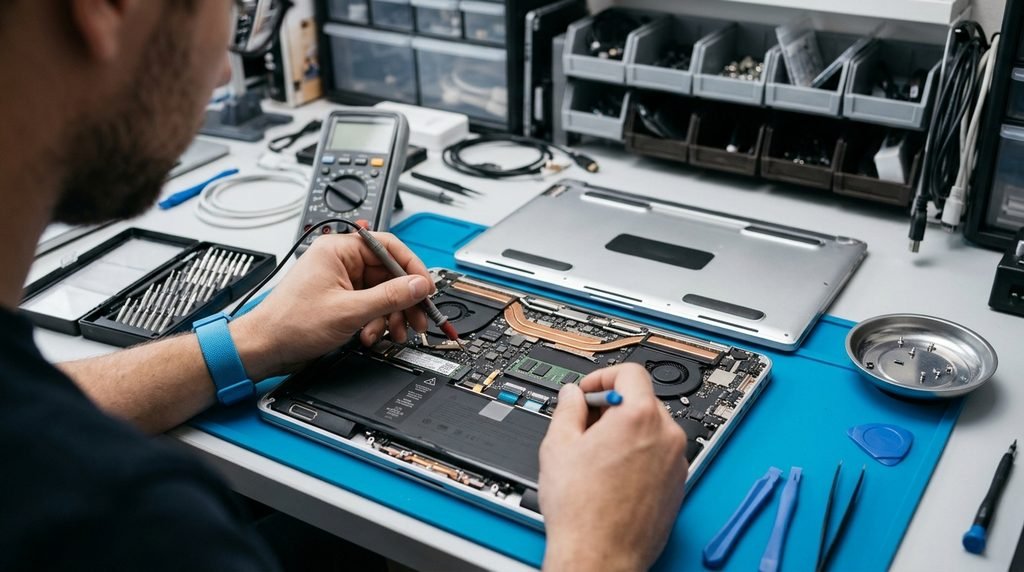
Before replacing any component, it is important to identify the actual source of the problem.
HP provides diagnostic tools that can help users examine hardware and identify potential failures.
Use HP PC Hardware Diagnostics
HP PC Hardware Diagnostics is designed to test supported computer components and identify hardware-related issues.
Depending on the model, available tests may include:
- Battery.
- Memory.
- Storage.
- Processor.
- System board.
- Power-related components.
You can access supported diagnostic options through Windows or the laptop’s startup environment.
Some HP computers allow users to open diagnostics by pressing the Esc key during startup and then selecting the appropriate diagnostic option. The exact process varies by model.
Understand HP Diagnostic Failure IDs
If a hardware test identifies a problem, HP diagnostics may generate a failure ID.
This code can help HP support identify the failed component and understand the diagnostic result.
Keep a record of the failure ID before contacting a repair center. It can make the support process more efficient.
Identify Your HP Laptop Model
Knowing the exact laptop model is important when ordering replacement parts or requesting professional repair.
You can usually find the model information:
- On the product label underneath the laptop.
- In the BIOS or system information.
- Through Windows System Information.
- Through HP’s official product identification tools.
Always verify the product number and component compatibility before purchasing a replacement battery, screen, keyboard, or other hardware.
How to Check Your HP Laptop Warranty
Before paying for repairs, check whether your laptop is still covered by its original warranty or an additional service plan.
HP provides an online warranty lookup tool that allows customers to check coverage using their product information.
The general process is:
- Visit the official HP Support website.
- Open the warranty status or warranty check section.
- Enter your laptop’s serial number.
- Provide any additional product information requested.
- Review the available warranty details.
Warranty coverage varies according to the product, country, purchase date, and applicable terms.
Standard limited warranties generally cover eligible manufacturing defects. Accidental damage, liquid spills, unauthorized modifications, and ordinary wear may not be covered.
Customers with HP Care Pack services may have additional protection depending on the specific plan.
Read the applicable warranty conditions before approving a paid repair.
Where Can You Get an HP Laptop Repaired?
There are several ways to arrange HP laptop repair, depending on your location, warranty status, and the type of damage.
HP Authorized Service Centers
Authorized HP service centers are an important option for customers who want professional support through HP’s service network.
These providers can assist with eligible hardware problems, component replacement, and warranty-related repairs.
Before visiting, confirm that the location handles your particular laptop model and the type of repair you need.
You can use HP’s official service center locator to search for available repair options in your region.
HP Official Support
HP’s official support website provides product-specific assistance, diagnostic resources, repair information, and support contact options.
Customers may be able to start a repair request by identifying their device and following the available support instructions.
This is particularly useful when the laptop is covered by an active warranty.
Independent Laptop Repair Shops
Independent repair technicians may provide another option when official service is unavailable or the laptop is outside its warranty period.
They may offer services such as:
- Screen replacement.
- Battery replacement.
- Keyboard repair.
- Charging-port repair.
- SSD installation.
- Cooling-system maintenance.
- Motherboard diagnosis.
Before choosing an independent provider, ask about technician experience, replacement-part quality, repair guarantees, and data privacy.
Do not assume that every independent repair shop uses genuine HP components.
How Much Does HP Laptop Repair Cost?
HP laptop repair costs vary depending on the laptop model, damaged component, part availability, labor charges, and location.
A simple software issue may require little or no hardware expense, while motherboard or display replacement can be considerably more expensive.
The following table shows the main repair categories and the factors that influence their costs.
| Repair type | Main cost factors |
|---|---|
| Battery replacement | Battery model, capacity, and availability |
| Screen replacement | Display size, resolution, and panel type |
| Keyboard replacement | Keyboard layout and installation complexity |
| Charging-port repair | Port type and motherboard damage |
| SSD replacement | Storage capacity and component compatibility |
| RAM upgrade | Memory generation and supported capacity |
| Motherboard repair | Component damage and repair complexity |
| Cooling-system repair | Fan, heatsink, cleaning, and thermal materials |
Factors That Affect Repair Pricing
Laptop model: Premium laptops and gaming models may require more expensive components.
Part availability: Older or less common models may have limited replacement-part availability.
Labor charges: Some repairs require extensive disassembly and specialist equipment.
Warranty status: Eligible warranty repairs may reduce or eliminate certain expenses.
Damage severity: A damaged motherboard may require more extensive work than replacing an individual component.
Always request a repair estimate before authorizing the work. Ask whether the quotation includes replacement parts, labor, taxes, and any diagnostic fees.
DIY HP Laptop Repair vs. Professional Service
Not every laptop problem requires a repair technician. Some issues can be addressed through software troubleshooting or simple maintenance.
However, opening a laptop and replacing internal components requires appropriate knowledge and tools.
| Repair task | DIY suitability |
|---|---|
| Windows updates | Suitable for most users |
| Basic software troubleshooting | Suitable for most users |
| External keyboard or mouse testing | Suitable for most users |
| Compatible SSD upgrade | Depends on model and experience |
| RAM replacement | Depends on model and experience |
| Screen replacement | Usually requires technical experience |
| Battery replacement | Model-dependent; safety precautions essential |
| Motherboard repair | Professional service recommended |
| Liquid-damaged electronics | Professional inspection recommended |
When DIY Repair Makes Sense
DIY troubleshooting may be appropriate when the problem involves software settings, outdated drivers, external accessories, or basic maintenance.
Always consult the service manual for your exact HP laptop before removing any components.
When Professional Repair Is Better
Professional repair is generally preferable when the problem involves:
- A swollen or damaged battery.
- Liquid entering the laptop.
- Motherboard failure.
- Damaged charging circuitry.
- Broken internal display connections.
- Electrical or burning smells.
Attempting complicated repairs without the right experience can create additional damage and increase expenses.
How to Protect Your Data Before Laptop Repair
A laptop can contain important personal information, business documents, photos, passwords, and other private files.
Protecting this information should be part of the repair process.
Before handing over your device:
- Back up important files to a secure external drive or trusted cloud service.
- Confirm that your backup can be accessed.
- Sign out of accounts when appropriate.
- Review the repair provider’s privacy and data-handling policies.
- Ask whether the repair requires access to your Windows account.
- Keep a record of your laptop’s serial number and repair request.
If the laptop cannot start, explain this to the technician and ask how the data will be handled.
Some repairs may require storage replacement or operating-system reinstallation, so never assume your files will automatically remain untouched.
Should You Repair or Replace Your HP Laptop?
Deciding whether to repair or replace an HP laptop depends on its age, performance, physical condition, and estimated repair expense.
A relatively new laptop with a damaged battery or replaceable screen may still be worth repairing.
However, an older laptop with repeated motherboard problems, poor performance, and several failing components may not justify a major repair investment.
Consider these factors:
- The laptop’s current market value.
- The estimated repair quotation.
- Its remaining expected lifespan.
- Availability of compatible replacement parts.
- Performance requirements.
- Whether important software still supports the device.
A useful approach is to compare the complete repair expense with the price of a suitable replacement laptop.
Do not make the decision based on one component’s replacement cost alone. Consider whether the repaired device will continue meeting your needs.
What to Check After Your HP Laptop Has Been Repaired
Once your laptop has been returned, inspect the repaired device before considering the job complete.
Use this checklist:
- Confirm that the original problem has been resolved.
- Check the display for unusual lines or dark areas.
- Test the keyboard and touchpad.
- Confirm that the battery charges correctly.
- Test the charging adapter and port.
- Check Wi-Fi and Bluetooth connectivity.
- Inspect USB ports and other connections.
- Listen for unusual fan noise.
- Check whether the laptop overheats.
- Confirm that important files and applications are accessible.
- Obtain the repair invoice and applicable warranty details.
If the same problem returns, contact the repair provider promptly and refer to the original repair documentation.
Frequently Asked Questions
1. How do I get my HP laptop repaired?
You can arrange HP laptop repair through HP’s official support website, an authorized service center, or a qualified independent technician. Check your warranty status and identify the laptop model before requesting assistance.
2. Does HP repair laptops under warranty?
HP provides repair services for eligible manufacturing defects covered by the applicable warranty. Accidental damage and other excluded issues may require paid repairs unless additional protection applies.
3. How much does it cost to repair an HP laptop?
The cost depends on the laptop model, damaged component, replacement-part availability, and labor charges. Screen, battery, keyboard, and motherboard repairs can have significantly different prices.
4. Can I repair my HP laptop myself?
Some problems, such as software errors and basic troubleshooting issues, can be addressed at home. Internal hardware repairs require appropriate tools and experience, particularly when dealing with batteries, charging circuits, or motherboards.
5. Is it better to repair or replace an HP laptop?
Repairing is often practical when the device has a relatively minor problem and remains useful. Replacement may make more sense when the laptop has extensive damage, repeated failures, or repair costs that approach the price of a suitable new device.
Conclusion
HP laptop repair can restore a device’s functionality and extend its useful life when the underlying problem is correctly identified. Start with basic troubleshooting, check warranty eligibility, and use HP’s diagnostic resources before choosing a repair provider. Compare repair estimates, protect your personal data, and consider the laptop’s overall condition before investing in expensive replacement parts. Making an informed decision can help you avoid unnecessary costs and keep your computer working reliably.
Related Post



[…] corrupted boot files, incompatible drivers, BIOS problems, or a failing storage drive. Fortunately, several troubleshooting methods can help restore normal startup without immediately reinstalling […]