
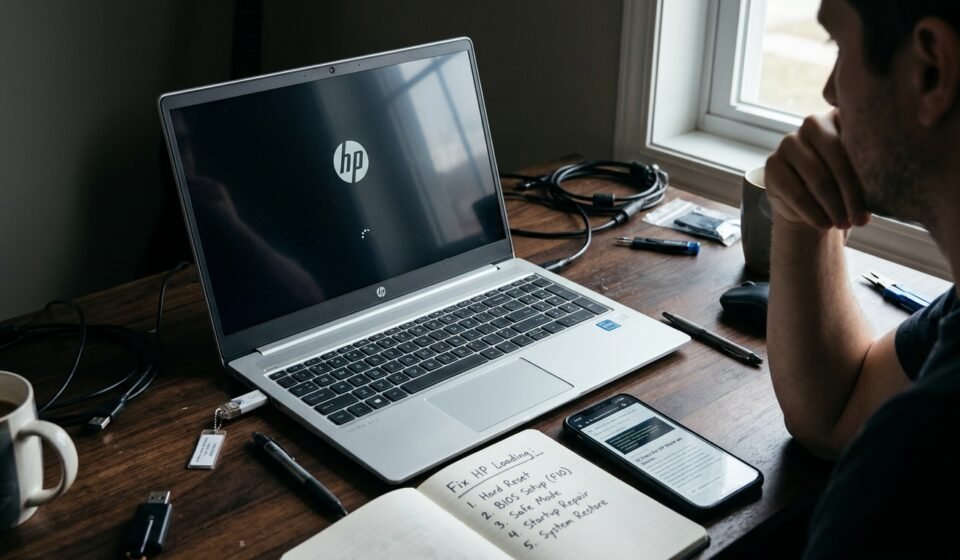

You turn on your HP laptop, the HP logo appears, and a spinning circle starts moving beneath it. However, Windows never finishes loading, leaving you stuck on the same screen. Restarting the laptop may not solve the problem, and you might start worrying about losing your important files.
An HP laptop stuck on the loading screen can result from an incomplete Windows update, corrupted boot files, incompatible drivers, BIOS problems, or a failing storage drive. Fortunately, several troubleshooting methods can help restore normal startup without immediately reinstalling Windows.
This guide explains 10 practical solutions for Windows 10 and Windows 11 users, starting with simple fixes and progressing to advanced recovery methods.
Which HP Laptop Loading Screen Problem Are You Experiencing?
Before attempting repairs, identify what appears on your screen. Different startup symptoms can indicate different problems.
- HP logo frozen without spinning dots: This may indicate a firmware, power, or hardware-detection problem.
- HP logo with spinning dots: Windows may be struggling to complete its startup process.
- Black screen with a cursor: A graphics driver, Windows update, or startup process may be responsible.
- Preparing Automatic Repair keeps appearing: Windows may have damaged boot files or another startup problem.
- Blue screen with an error code: A driver, hardware component, or system file may be causing a startup failure.
Identifying the symptom helps you choose the appropriate troubleshooting method instead of trying random solutions.
Why Is My HP Laptop Stuck on the Loading Screen?
Several issues can prevent an HP laptop from completing its startup process.
Failed Windows updates: An interrupted update can leave Windows unable to load correctly.
Corrupted boot files: Damaged startup configuration files can prevent the operating system from opening.
Driver conflicts: An incompatible graphics, storage, or other device driver may interrupt startup.
Connected external devices: USB drives, docking stations, printers, and other accessories can sometimes interfere with the boot process.
BIOS or UEFI problems: Incorrect firmware settings or an unsuccessful BIOS update can affect startup.
Storage drive failure: A damaged SSD or HDD may prevent Windows from accessing necessary files.
Memory problems: Faulty RAM can cause freezing, unexpected restarts, or startup failures.
Overheating: Excessive temperatures can cause hardware instability and unexpected shutdowns.
Before You Start Troubleshooting
Take a few precautions before attempting advanced repairs.
- Connect your HP laptop to its charger so it has sufficient power during recovery.
- Locate your BitLocker recovery key if device encryption is enabled.
- Write down any error messages or stop codes displayed on the screen.
- Avoid factory resetting or reinstalling Windows until other recovery options have been attempted.
- If you suspect storage failure, prioritize protecting your important files.
These precautions can prevent unnecessary complications during troubleshooting.
10 Ways to Fix an HP Laptop Stuck on the Loading Screen
1. Give Windows Time to Complete Startup
If your HP laptop became stuck immediately after a Windows update, the operating system might still be processing installation changes.
Some updates take longer than normal, particularly on older laptops or systems with slower storage drives.
Before forcing a shutdown, consider the following:
- Keep the laptop connected to its charger.
- Check whether the screen displays an update message.
- Look for signs of storage activity, if your model has an activity indicator.
- Allow the process additional time if the laptop appears to be working.
Waiting approximately 30–60 minutes can be reasonable when an update appears active. If the screen remains completely unchanged for an extended period, move to the next troubleshooting method.
Avoid interrupting an active BIOS or firmware update.
2. Perform a Hard Reset on Your HP Laptop
A hard reset can clear temporary power-related conditions that sometimes prevent an HP laptop from starting correctly.
Follow these steps:
- Hold the power button until the laptop completely shuts down.
- Disconnect the charger.
- Remove connected USB devices and other accessories.
- If your laptop has a removable battery, remove it according to the manufacturer’s instructions.
- Press and hold the power button for approximately 15 seconds.
- Reconnect the charger.
- Turn on the laptop and check whether Windows loads.
If your laptop has an internal battery, do not open the device just to disconnect it. Use the power-reset procedure recommended for your particular model.
3. Disconnect All External Devices
External accessories can occasionally interfere with the startup process.
For example, a connected USB drive or docking station might affect which device the laptop attempts to boot from.
To check whether an accessory is responsible:
- Turn off your HP laptop.
- Disconnect USB flash drives and external hard drives.
- Remove memory cards.
- Disconnect printers, controllers, docking stations, and external monitors.
- Leave only the charger connected.
- Turn on the laptop again.
If Windows starts successfully, reconnect your accessories individually. This can help identify the device responsible for the startup problem.
4. Run HP PC Hardware Diagnostics
If the laptop continues freezing at the HP logo, check whether its internal hardware is functioning properly.
HP provides built-in hardware diagnostics that can test components such as memory and storage without requiring Windows to start.
Follow these instructions:
- Shut down your HP laptop.
- Press the power button.
- Immediately press the Esc key repeatedly.
- Wait for the HP Startup Menu.
- Press F2 to open HP PC Hardware Diagnostics UEFI.
- Select the available system or component tests.
- Run the memory and storage tests.
Review the results carefully.
- Passed: The tested components did not report a problem. Investigate Windows startup next.
- Failed: A hardware component may require repair or replacement.
- Failure ID displayed: Save the code because HP support may need it to identify the problem.
A successful hardware test does not guarantee that Windows is undamaged. It only helps narrow down the possible cause.
5. Reset BIOS Settings or Use HP BIOS Recovery
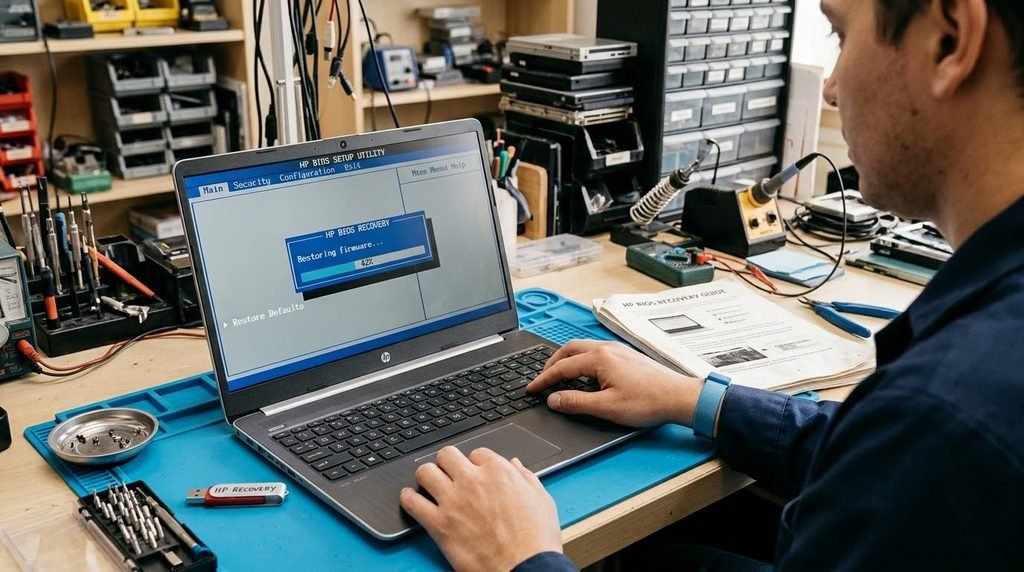
BIOS and UEFI firmware help your laptop initialize its hardware and locate the operating system during startup.
Incorrect firmware settings can sometimes prevent Windows from loading.
To access BIOS settings:
- Turn off your HP laptop.
- Turn it on and repeatedly press Esc.
- Press F10 when the Startup Menu appears.
- Locate the option for restoring BIOS defaults.
- Review the settings and restore defaults if appropriate.
- Save the changes and restart the laptop.
If the laptop cannot reach BIOS Setup and the problem began after a failed BIOS update, model-supported BIOS recovery may be appropriate.
Some HP models support a recovery shortcut involving the Windows and B keys. Certain models may also support Windows and V.
The exact procedure varies by model, so consult the appropriate HP instructions before attempting recovery. Do not use a BIOS file intended for a different laptop.
6. Open Windows Recovery and Run Startup Repair
If hardware diagnostics do not identify a problem, corrupted Windows startup files may be preventing the laptop from loading.
Windows Recovery Environment provides Startup Repair, which can automatically detect and attempt to fix certain startup problems.
On supported HP models, try pressing F11 repeatedly immediately after turning on the laptop.
If that does not work, you may be able to trigger Windows Recovery Environment through repeated unsuccessful startups:
- Turn on the laptop.
- When the HP logo appears, hold the power button until the device shuts down.
- Repeat the interruption carefully for a total of three unsuccessful startup attempts.
- Turn on the laptop again and check whether Automatic Repair or Windows Recovery appears.
- Select Advanced options if available.
- Open Troubleshoot.
- Select Advanced options.
- Choose Startup Repair.
Follow the instructions and allow the repair process to finish.
If Windows Recovery does not appear, use compatible Windows recovery or installation media to access its repair tools.
7. Start Windows in Safe Mode
Safe Mode starts Windows with a limited set of essential drivers and services. It can help identify whether a recently installed application, driver, or update is causing the loading problem.
To access Safe Mode:
- Open Windows Recovery Environment.
- Select Troubleshoot.
- Choose Advanced options.
- Open Startup Settings.
- Select Restart.
- After the laptop restarts, press 4 or F4 for Safe Mode.
- Select 5 or F5 if you need Safe Mode with Networking.
If Windows starts successfully, investigate recently installed software and drivers.
You can try:
- Removing a recently installed application.
- Uninstalling a problematic driver.
- Removing a recent Windows update.
- Disconnecting recently added hardware.
- Checking available storage space.
Restart the laptop normally after making the necessary changes.
Do not rely on repeatedly pressing F8 to access Safe Mode. This method is not dependable on most modern Windows 10 and Windows 11 installations.
8. Use System Restore to Fix Recent Windows Changes
If the startup problem began after a driver installation, application update, or system modification, System Restore may help.
It allows Windows to return certain system settings, drivers, and configuration files to an earlier restore point.
To use this feature:
- Open Windows Recovery Environment.
- Select Troubleshoot.
- Choose Advanced options.
- Select System Restore.
- Choose your Windows account if requested.
- Select a restore point created before the problem started.
- Review the affected programs.
- Confirm the restoration and wait for it to finish.
System Restore is different from a factory reset. It is designed to reverse certain system changes rather than erase your personal documents.
However, it requires an available restore point. If none exists, you will need another recovery method.
9. Repair Windows Boot Files Using Command Prompt
If Startup Repair and System Restore do not resolve the problem, advanced users may investigate Windows boot configuration and storage errors through Command Prompt.
This method requires care because incorrect commands or drive selections can cause additional problems.
Open Windows Recovery Environment and navigate to:
Troubleshoot → Advanced options → Command Prompt.
First, identify the Windows installation drive. The drive letter may be different in recovery mode.
For example, enter:
dir D:\Check whether the expected Windows folders are present. Do not assume that Windows is always installed on drive C:.
Some useful diagnostic and repair commands include:
Check the storage drive:
chkdsk D: /fThis checks the selected volume for file-system errors and attempts to repair them.
Search for Windows installations:
bootrec /scanosRebuild the boot configuration data:
bootrec /rebuildbcdThese commands are not universal fixes. Their usefulness depends on the actual startup problem and the laptop’s boot configuration.
Modern HP laptops commonly use UEFI and GPT partitions. Some older bootrec instructions may not work as expected on these systems.
If a command returns an access-denied message or you are unsure which partition to repair, stop rather than experimenting with additional commands.
If the storage drive reports serious errors or possible bad sectors, prioritize data protection before attempting further repairs.
10. Reset or Reinstall Windows as a Last Resort
If the previous solutions fail, resetting or reinstalling Windows may become necessary.
Before proceeding, understand that these options can affect installed applications, settings, and personal files.
If Windows Recovery Environment is available:
- Select Troubleshoot.
- Choose Reset this PC.
- Review the available recovery options.
- Select Keep my files if it is offered and appropriate.
- Follow the on-screen instructions.
The Keep my files option is intended to preserve personal files, but it removes applications and resets many Windows settings. It is not a guaranteed backup.
If the built-in recovery environment is damaged, you may need a Windows installation USB or an appropriate HP Cloud Recovery solution.
Microsoft’s Media Creation Tool can be used on another working computer to create compatible Windows installation media.
Connect the USB drive to your HP laptop, press Esc during startup, and use F9 to open Boot Device Options. Select the USB drive and choose Repair your computer when available.
Avoid formatting partitions or selecting a clean installation until your important data has been protected.
HP Laptop Stuck on the Loading Screen After a Windows Update
A failed or incomplete Windows update is a common reason for sudden startup problems.
If your HP laptop worked normally before an update but now freezes at the loading screen, try the following:
- Allow an active update additional time to complete.
- Perform a hard reset if the system is clearly unresponsive.
- Open Windows Recovery Environment.
- Select Troubleshoot.
- Choose Advanced options.
- Select Uninstall Updates.
- Try removing the latest quality update first.
- If necessary, investigate the latest feature update.
- Restart the laptop and check whether Windows loads.
If uninstalling the update does not help, try Startup Repair or System Restore.
Once Windows starts successfully, make sure the laptop has sufficient storage space and install future updates with the charger connected.
HP Laptop Asking for a BitLocker Recovery Key at Startup
Sometimes an HP laptop displays a BitLocker recovery screen instead of loading Windows.
This does not automatically mean your files have disappeared. BitLocker is a security feature that protects data by encrypting the storage drive.
A recovery key may be requested after:
- A BIOS or firmware update.
- A change in boot configuration.
- A hardware modification.
- A security-related system change.
To resolve the prompt:
- Use another device to sign in to the Microsoft account associated with your laptop.
- Open the Microsoft account’s BitLocker recovery key page.
- Locate the recovery key that matches the key ID displayed on your laptop.
- Enter the recovery key carefully.
- Continue the startup process.
For a work or school laptop, contact your organization’s IT administrator because the recovery key may be managed by the organization.
Keep a copy of your recovery key somewhere safe and separate from the laptop.
How to Recover Your Files When Your HP Laptop Won’t Boot
If your HP laptop cannot start Windows, protecting your personal files should be a priority before attempting a reset or reinstall.
Depending on the condition of the storage drive, several recovery options may be available.
Use Safe Mode: If Windows can start in Safe Mode, copy important documents, photos, and other files to an external storage device.
Use Windows Recovery Command Prompt: Advanced users may be able to access files through the recovery environment and copy them to an external drive.
Use an SSD or HDD enclosure: If the storage drive is removable and healthy, it may be possible to connect it to another computer using a compatible enclosure or adapter.
Seek professional data recovery: If the drive is making unusual clicking noises, is not detected, or contains irreplaceable information, stop repeated startup attempts and consult a qualified data recovery specialist.
If BitLocker encryption is enabled, you may need the recovery key to access the files from another computer.
When Should You Take Your HP Laptop to a Repair Shop?
Not every startup problem can be fixed through Windows recovery tools. Some symptoms indicate that the laptop may have a physical hardware problem.
Consider professional assistance if:
- HP hardware diagnostics report a storage or memory failure.
- The laptop repeatedly shuts down during startup.
- The internal SSD or HDD is not detected in BIOS.
- The laptop becomes unusually hot and freezes.
- Recovery tools repeatedly crash or restart.
- The problem started after the laptop was opened or physically damaged.
- Important files are stored on a drive that may be failing.
Check your warranty before opening the laptop or replacing internal components. If you are not experienced with hardware repairs, avoid removing RAM or storage components yourself.
How to Prevent HP Laptop Startup Problems in the Future
A few maintenance practices can reduce the likelihood of encountering the same problem again.
- Keep the laptop connected to power during Windows updates.
- Avoid forcing shutdowns while updates or firmware installations are running.
- Maintain regular backups of important documents.
- Keep enough free storage space for Windows updates.
- Install compatible drivers through trusted HP support resources.
- Create recovery media while the laptop is working properly.
- Save your BitLocker recovery key in a secure location.
- Keep the cooling vents clear to prevent overheating.
Regular backups are particularly important because even a laptop that works normally today can experience unexpected storage or software failures.
Frequently Asked Questions
1. Why is my HP laptop stuck on the HP logo?
An HP laptop may freeze at the logo because of corrupted Windows boot files, an unsuccessful update, a driver conflict, incorrect BIOS settings, or a hardware problem. Disconnecting external devices and running HP hardware diagnostics can help identify the cause.
2. How long should an HP laptop take to load?
A normal startup generally takes less than a minute, although the time varies depending on the laptop and its storage. After a major Windows update, startup may take considerably longer. If the screen remains unchanged for an extended period without signs of activity, further troubleshooting may be necessary.
3. How do I force restart an HP laptop with a frozen screen?
Hold the power button until the laptop shuts down. Disconnect the charger and external accessories, then hold the power button for approximately 15 seconds. Reconnect the charger and turn on the laptop. Follow your model’s instructions if it has a removable battery.
4. Will fixing an HP laptop loading screen delete my files?
Most initial troubleshooting methods, including disconnecting devices, power resets, and hardware diagnostics, do not delete personal files. Startup Repair and System Restore are also designed to address system problems without intentionally removing personal documents. However, resetting or reinstalling Windows can affect your data, so create a backup whenever possible.
5. Why does my HP laptop work after restarting it a second time?
An intermittent startup problem can result from temporary power conditions, a slow-loading driver, Windows startup errors, or an emerging hardware problem. If this happens repeatedly, run hardware diagnostics and back up important files rather than relying on additional restarts.
Conclusion
An HP laptop stuck on the loading screen can usually be investigated through simple power resets, hardware diagnostics, and Windows recovery tools. Start with the safest solutions before attempting advanced repairs or reinstalling Windows. If diagnostics reveal a failing storage drive or memory problem, protect your important files and seek professional assistance. Regular backups and careful updates can also help prevent future startup issues.
Related Post



[…] the exact button location can vary between ThinkPad, IdeaPad, Yoga, and Legion models. If your laptop does not respond when you press the power button, the battery, charger, or another […]