


Turning on a Lenovo laptop is usually simple, even if you are using one for the first time. Most Lenovo laptops have a dedicated power button located above the keyboard, near the side, or along the laptop’s edge. Pressing this button starts the computer and begins the boot process.
However, the exact button location can vary between ThinkPad, IdeaPad, Yoga, and Legion models. If your laptop does not respond when you press the power button, the battery, charger, or another hardware issue may be responsible.
This guide explains how to turn on a Lenovo laptop, where to find its power button, and what to do if it will not start.
How to Turn On a Lenovo Laptop
Follow these simple steps to start your Lenovo laptop:
- Open the laptop: Place it on a stable surface and lift the screen.
- Connect the charger if necessary: If the battery is empty or you are unsure about its charge, connect the original or compatible Lenovo power adapter.
- Find the power button: Look above the keyboard, near the top-right corner, or along the laptop’s side.
- Press the power button once: A brief press is normally enough to start the laptop.
- Wait for startup: The power indicator may illuminate, the fan may start running, and the Lenovo logo may appear on the screen.
- Allow Windows to load: Wait for the sign-in screen or desktop to appear.
Once Windows finishes loading, you can sign in and begin using your laptop.
Important: You normally do not need to hold the power button for several seconds to turn on a working laptop. Holding it for an extended period is generally associated with forced shutdown or troubleshooting procedures.
Where Is the Power Button on a Lenovo Laptop?
The power button is not located in exactly the same position on every Lenovo laptop. Its placement depends on the model and design.
Here are some common locations to check:
Above the Keyboard
Many Lenovo laptops have a power button above the keyboard, often near the upper-right corner. It may have a power symbol that looks like a circle with a vertical line.
Near the Top-Right Corner
Some models place the button close to the keyboard’s top-right area. Check around the function keys and the area above the Backspace or Delete keys.
On the Side of the Laptop
Certain Lenovo designs have a power button along the right or left edge. Look around the charging port and other connection ports.
On the Keyboard
Some models integrate the power button into the keyboard area. Check the upper row carefully and look for the recognizable power symbol.
Tip: If you cannot find the button, check the user guide for your exact Lenovo model. Do not assume that the power button is in the same place as it is on another Lenovo laptop.
How to Turn On a Lenovo Laptop for the First Time
If you have recently purchased a Lenovo laptop, you may need to complete a few basic steps before using it.
- Remove the laptop and its accessories from the packaging.
- Place the laptop on a flat, stable surface.
- Connect the supplied power adapter to the laptop.
- Plug the adapter into a working wall outlet.
- Open the laptop’s screen.
- Press the power button once.
- Wait for the initial startup process.
On a new Windows laptop, you may see setup instructions asking you to select a language, region, keyboard layout, and network connection. Follow the instructions displayed on the screen to finish the initial configuration.
You may also be asked to sign in with a Microsoft account or configure other Windows settings.
If the laptop does not start immediately, allow its battery to charge for a while and try again.
What to Do If Your Lenovo Laptop Does Not Turn On
If pressing the power button does nothing, do not immediately assume that the laptop is damaged. Start with basic checks before considering more advanced troubleshooting.
1. Check the Charger and Power Outlet
A completely depleted battery may prevent your laptop from starting.
Try the following:
- Check that the charger is firmly connected to the laptop.
- Make sure the adapter is plugged into a working wall outlet.
- Inspect the charging cable for visible damage.
- Check whether the charging indicator turns on, if your model has one.
- Try another suitable outlet if the first one does not work.
Use a compatible power adapter that meets your laptop’s requirements. Avoid using a damaged charger or cable.
2. Give the Battery Time to Charge
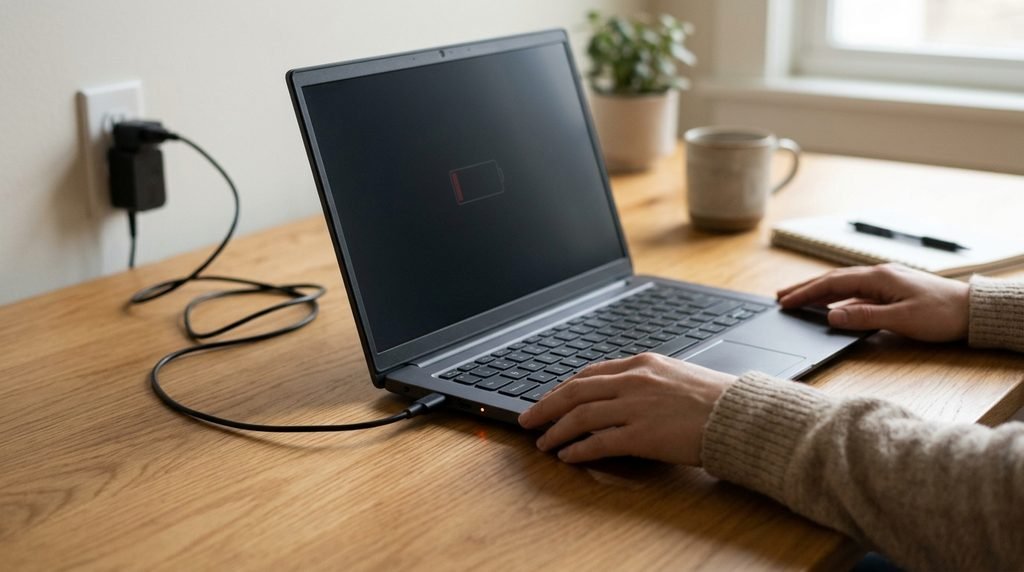
If your Lenovo laptop has been unused for a long time, its battery may be deeply discharged.
Connect the charger and allow the laptop to charge for several minutes before trying to start it again. If the battery was completely empty, it may need additional charging time.
If there is no charging indicator or the laptop still does not respond, the charger, charging port, battery, or internal power system may need inspection.
3. Disconnect External Devices
Sometimes a connected accessory can interfere with startup.
Before trying again, disconnect unnecessary external devices, including:
- USB flash drives.
- External hard drives.
- Printers.
- Memory card readers.
- USB hubs.
- Other connected accessories.
Leave the charger connected if needed, then press the power button once.
4. Try a Power Reset
A power reset may help when a laptop becomes unresponsive because of a temporary power-related condition.
For a basic external reset attempt:
- Turn off the laptop if it is still running.
- Disconnect the AC power adapter.
- Disconnect external accessories.
- Follow the power-reset instructions provided for your specific Lenovo model.
- Reconnect the charger if required.
- Press the power button to check whether the laptop starts.
Some Lenovo models have an emergency-reset hole, while others use a different procedure. Only use a reset hole if the manufacturer’s documentation confirms its location and purpose. Do not insert a paper clip into an unidentified opening.
5. Check Whether the Laptop Is Starting but the Screen Is Black
A Lenovo laptop may actually be powered on even when its display remains blank.
Look for signs such as:
- A glowing power indicator.
- Fan noise.
- Keyboard lights.
- Startup sounds.
- Other signs of normal hardware activity.
If these signs are present, the problem may involve the display, graphics system, or startup process rather than the power supply.
Try increasing the screen brightness and disconnecting external displays. If the screen remains black, consult Lenovo’s model-specific troubleshooting instructions.
Can You Turn On a Lenovo Laptop Without the Power Button?
In some situations, a Lenovo laptop may support an alternative startup method, but this depends on its model and configuration.
Some computers offer features related to power-on behavior, such as opening the lid to wake or start the device. Certain models may also support specific firmware or BIOS settings.
However, these options are not available on every Lenovo laptop.
If the regular power button is damaged or does not respond:
- Check your laptop’s model number.
- Visit Lenovo Support and locate its user guide.
- Look for documented power-on or recovery options.
- Check whether your particular model supports an alternative method.
- Contact Lenovo support or a qualified technician if the button itself is faulty.
Do not rely on random keyboard shortcuts found online. A shortcut that works on one model may not work on another.
What Is the Lenovo Novo Button?
The Novo button is a special feature included on certain Lenovo laptops, particularly some IdeaPad models.
It is designed to open a special menu that can provide access to options such as:
- BIOS Setup.
- Boot Menu.
- System Recovery.
The Novo button is different from the regular power button. Its primary purpose is to provide access to startup and recovery tools, not to serve as a universal replacement for the power button.
Its location and operation vary by model. If your laptop has a Novo button, consult its user guide before using it.
Power Light Is On but the Lenovo Laptop Screen Is Black
If the power light turns on but nothing appears on the screen, your laptop may be receiving power without displaying the startup screen.
Try these basic checks:
- Increase the screen brightness.
- Disconnect external monitors and unnecessary accessories.
- Check whether the screen displays the Lenovo logo during startup.
- Connect an external display if one is available and compatible.
- Restart the laptop using the normal procedure if it is responsive.
If the display remains blank, the issue could involve the screen, graphics hardware, memory, or another internal component. Further diagnosis may be necessary.
Avoid opening the laptop or removing internal components unless you have the appropriate experience and instructions for your model.
When Should You Contact Lenovo Support?
Basic troubleshooting may solve many startup problems, but some issues require professional assistance.
Consider contacting Lenovo Support or a qualified repair technician if:
- The laptop shows no sign of receiving power.
- The charger or charging port appears damaged.
- The power button is physically broken.
- The laptop repeatedly shuts down during startup.
- The display remains black despite basic checks.
- You notice unusual heat, burning smells, or other signs of electrical damage.
Before requesting assistance, identify your Lenovo model and serial number. These details help locate the correct troubleshooting instructions and compatible replacement parts.
Frequently Asked Questions
1. How do I turn on a Lenovo laptop?
Open the screen, connect the charger if needed, locate the power button, and press it once. Wait for the Lenovo logo and Windows startup screen to appear.
2. Where is the power button on a Lenovo laptop?
It is commonly located above the keyboard, near the top-right corner, or along one side of the laptop. Its exact position depends on the model.
3. Why won’t my Lenovo laptop turn on when I press the power button?
Possible causes include a depleted battery, faulty charger, damaged charging port, unresponsive power system, or hardware problem. Check the power connection and battery before attempting model-specific troubleshooting.
4. Can I turn on my Lenovo laptop without pressing the power button?
Some Lenovo models support alternative power-on or wake features, but availability depends on the model and its settings. Check the official user guide rather than assuming a keyboard shortcut will work.
5. What should I do if my Lenovo laptop power light is on but the screen is black?
Check the screen brightness, disconnect external accessories, and see whether the Lenovo logo appears during startup. If the display remains blank, consult Lenovo’s troubleshooting guidance because the issue may involve the display or another internal component.
Conclusion
Turning on a Lenovo laptop usually requires only a single press of its power button. If it does not respond, check the charger, battery, and connected accessories before trying a model-specific power reset. Remember that the Novo button and emergency-reset hole have different purposes. For persistent power or display problems, consult Lenovo Support or a qualified technician.
Related Post



[…] can use keyboard shortcuts, the Snipping Tool, or Microsoft Paint to capture and save images without installing additional […]