
A blurry laptop display can make reading text, viewing images, and completing everyday tasks difficult. Sometimes the entire screen looks fuzzy or pixelated, while in other cases, only text, certain applications, or an external monitor appears unclear. The problem may start after a Windows update, a graphics driver change, or an adjustment to display settings.
Fortunately, a blurry laptop screen does not always indicate physical damage. Incorrect screen resolution, unsuitable scaling, outdated graphics drivers, and application compatibility issues are common causes. Identifying the type of blur can help you choose the right solution without changing unnecessary settings.
This guide explains why laptop displays become blurry and provides practical steps to improve screen clarity on Windows 11 and Windows 10.
Why Is My Laptop Screen Blurry?
Several software and hardware problems can affect laptop display quality. Understanding the possible cause makes troubleshooting easier.
1. Incorrect Screen Resolution
Every laptop display has a native resolution, which represents the number of pixels its screen is designed to display. If Windows uses a different resolution, text and images may look stretched, soft, or pixelated.
For example, a laptop with a native resolution of 1920 × 1080 may produce a less sharp picture when configured to a lower resolution.
2. Incorrect Display Scaling
Windows scaling controls the size of text, icons, menus, and other interface elements. It helps make content readable on high-resolution displays.
However, an unsuitable scaling setting can make some applications appear fuzzy. This is particularly noticeable when using multiple monitors with different resolutions or pixel densities.
3. Outdated or Faulty Graphics Drivers
Graphics drivers help Windows communicate with the laptop’s graphics hardware. If a driver becomes outdated, corrupted, or incompatible with a recent update, display problems may occur.
You might notice blurry images, flickering, unusual colors, or intermittent pixelation.
4. Blurry Text Rendering
Sometimes the laptop screen itself looks clear, but letters and fonts appear fuzzy. This can happen because of text-rendering settings, application compatibility, or display scaling.
Windows includes ClearType, a tool that helps improve the appearance of text on supported displays.
5. Application Compatibility Problems
An application may look blurry even when the Windows desktop appears perfectly sharp. Some older programs do not handle high-DPI displays or Windows scaling correctly.
This can cause menus, buttons, and text to appear softer than other content.
6. External Display or Connection Problems
If you connect your laptop to a portable monitor or television, the second screen may look blurry because of incorrect resolution, scaling, or connection limitations.
A damaged cable or unsuitable display configuration can also affect image quality.
7. Possible Hardware Damage
Physical display problems are another possibility. A damaged LCD panel, loose internal display connection, or graphics hardware fault can produce persistent visual abnormalities.
Lines, flickering, discoloration, and changes in the image when moving the laptop lid may indicate a hardware issue.
How to Fix a Blurry Laptop Display
Try the following solutions in order, starting with the simplest adjustments. Check the screen after each step so you can identify which change makes a difference.
1. Restart Your Laptop
A temporary graphics or Windows display problem can sometimes disappear after restarting the computer.
Follow these steps:
- Save your open documents and close unnecessary applications.
- Open the Windows Start menu.
- Select the Power option.
- Choose Restart.
- Wait for Windows to load completely.
- Check whether the display looks sharper.
Restarting can clear temporary software problems, although it will not repair damaged display hardware or permanently correct an incorrect resolution.
2. Set the Recommended Screen Resolution
Using the display’s recommended resolution is one of the most important ways to improve image clarity.
On Windows 11:
- Right-click an empty area of the desktop.
- Select Display settings.
- Find the Display resolution option under Scale and layout.
- Open the resolution dropdown menu.
- Select the option marked Recommended, if available.
- Check whether the display becomes clearer.
On Windows 10:
- Right-click the desktop.
- Select Display settings.
- Scroll to Display resolution.
- Choose the Recommended resolution.
- Apply the change and check the screen.
Avoid selecting a lower resolution simply because it makes text or icons larger. If you need larger content, adjust scaling instead.
3. Adjust Windows Display Scaling
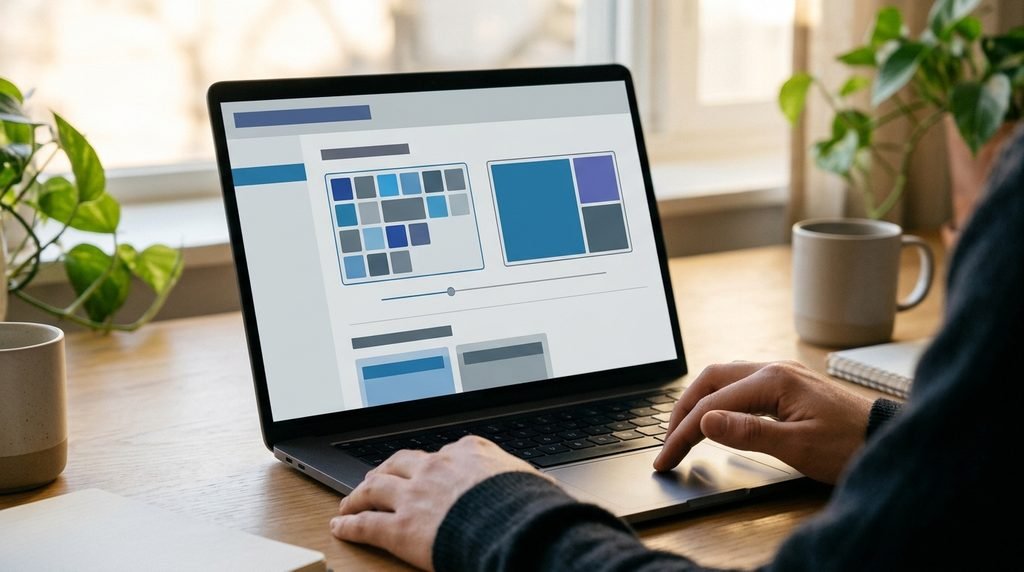
Incorrect scaling can make certain applications and interface elements look blurry.
To check scaling in Windows 11:
- Open Settings.
- Select System.
- Choose Display.
- Find the Scale option.
- Select the Recommended value.
- Check the appearance of your desktop and applications.
On Windows 10, open Settings, select System, and choose Display to find the scale and layout controls.
If the display looks blurry only in one application, avoid changing the scaling for the entire system immediately. The application may have its own compatibility settings.
4. Use ClearType to Improve Blurry Text
ClearType helps Windows render text more clearly on supported displays. It is particularly useful when letters look fuzzy but pictures and other screen elements appear normal.
To configure it:
- Open the Windows Start menu.
- Search for Adjust ClearType text.
- Open the ClearType Text Tuner.
- Select the option to turn on ClearType.
- Follow the on-screen instructions.
- Choose the text samples that look clearest to you.
- Finish the setup.
Open a document or website afterward to see whether the text has improved.
ClearType mainly addresses text appearance. It will not correct a low-resolution image or a physically damaged display.
5. Update Your Graphics Driver
An outdated or incompatible graphics driver can affect display performance. Updating it may help when the screen becomes blurry after a Windows update or driver change.
To check for an update:
- Right-click the Start button.
- Select Device Manager.
- Expand Display adapters.
- Right-click your graphics device.
- Select Update driver.
- Choose Search automatically for drivers.
You can also check Windows Update for available driver updates.
For better compatibility, consider checking your laptop manufacturer’s support website for the graphics driver designed for your exact model. Intel, AMD, and NVIDIA also provide official driver resources for supported hardware.
Avoid downloading drivers from unfamiliar websites.
6. Roll Back a Recently Updated Graphics Driver
If the display became blurry immediately after a graphics-driver update, the newer driver may be incompatible with your configuration.
You can investigate whether the previous driver is available.
- Open Device Manager.
- Expand Display adapters.
- Right-click your graphics device.
- Select Properties.
- Open the Driver tab.
- Select Roll Back Driver if the option is available.
- Follow the instructions and restart the laptop.
This option may be unavailable if Windows has no previous driver stored.
Only roll back a driver when the timing and symptoms suggest that the update caused the problem. Otherwise, use the manufacturer’s recommended driver.
7. Check the Refresh Rate
An incorrect refresh-rate setting can cause display behavior that feels uncomfortable or looks unusual, although refresh rate is not usually the main cause of ordinary blurry text.
To check it in Windows 11:
- Open Settings.
- Select System.
- Choose Display.
- Open Advanced display.
- Find Choose a refresh rate.
- Select a supported setting for your screen.
On Windows 10, you can find refresh-rate controls through Advanced display settings.
Use a refresh rate supported by your laptop’s display. Do not assume that selecting the highest available number will solve every visual problem.
8. Fix Blurry Applications
If the desktop looks sharp but one program appears blurry, the issue may involve application scaling or compatibility.
Try these steps:
- Close the affected application.
- Reopen it and check whether the problem remains.
- Look for an available application update.
- Check whether the program has its own display or zoom settings.
- If the problem continues, right-click its shortcut.
- Select Properties.
- Open the Compatibility tab.
- Look for high-DPI settings, if available.
Windows may offer options for overriding high-DPI scaling behavior. These settings can help certain older applications, but the correct choice depends on the program. Change one setting at a time and test the result.
9. Check Your External Monitor Settings
If your laptop looks clear but a connected monitor appears blurry, check the second display separately.
- Connect the external monitor securely.
- Open Windows Display settings.
- Select the external monitor in the display arrangement.
- Check its resolution.
- Choose its Recommended resolution.
- Review its scaling setting.
- Check the monitor’s own picture and sharpness controls.
- If possible, test another suitable cable or connection port.
Different screens may require different scaling values. A setting that works well on the laptop panel may not be appropriate for the external monitor.
If the display uses USB-C or HDMI, make sure the connection and cable support the monitor’s required resolution and refresh rate.
How to Fix Blurry Text on a Laptop
Blurry text deserves separate attention because the rest of the display may look normal.
Start by checking ClearType and Windows scaling. Then examine the affected application.
For example, if text looks fuzzy in a browser but desktop icons appear sharp, check the browser’s zoom level and update the browser. If the problem affects several applications, review Windows scaling and text-rendering settings.
Also check the following:
- Use the display’s Recommended resolution.
- Avoid unnecessary custom scaling values.
- Check whether the application supports high-DPI displays.
- Restore browser zoom to a suitable setting if it was changed.
- Compare text in multiple applications to determine whether the problem is system-wide.
These checks help distinguish a Windows text-rendering problem from an application-specific issue.
Why Does My Laptop Screen Become Blurry After a Windows Update?
A display that becomes blurry after an update may be experiencing a driver or configuration change.
Windows updates can install or replace drivers, and display settings may need to be checked afterward. However, the timing alone does not prove that an update caused the problem.
Start with these checks:
- Confirm that the Recommended resolution is selected.
- Review Windows scaling settings.
- Check whether a graphics driver was recently updated.
- Install an appropriate driver from the laptop manufacturer if necessary.
- Consider rolling back the driver if the problem began immediately after its installation.
If the display becomes clear and then pixelated repeatedly, do not assume that changing resolution is enough. Check the graphics driver, test an external display if available, and look for signs of a hardware problem.
How to Tell Whether a Blurry Laptop Screen Has a Hardware Problem
Most display troubleshooting should begin with software settings, but persistent symptoms may indicate a physical fault.
Look for these warning signs:
- Horizontal or vertical lines across the display.
- Flickering that continues after restarting.
- Unusual colors or dark patches.
- Cracks or visible physical damage.
- Image distortion that changes when the laptop lid moves.
- A display that repeatedly goes blank or loses its picture.
If you have an external monitor, connect it to the laptop. If the external monitor looks normal while the built-in screen remains distorted, the laptop’s internal display or its connection may require inspection.
If both displays show similar visual problems, graphics hardware or software may be involved.
You can also check whether the problem appears before Windows loads, such as on the manufacturer’s startup logo or in the BIOS/UEFI screen. Persistent distortion outside Windows makes a hardware-related issue more plausible, although it does not identify the exact faulty component.
Do not open the laptop or handle internal display cables unless you have the appropriate experience. A qualified technician can inspect the panel, connections, and graphics hardware safely.
Common Mistakes to Avoid When Fixing a Blurry Screen
Some troubleshooting attempts can create additional display problems.
- Randomly lowering resolution: This can make the picture softer instead of clearer.
- Changing several settings together: You may not know which adjustment helped or caused a new problem.
- Installing unofficial drivers: Untrusted driver packages can introduce compatibility and security risks.
- Ignoring external monitor settings: Each connected display may need its own resolution and scaling configuration.
- Assuming the panel is damaged immediately: Check software settings before paying for a screen replacement.
- Factory-resetting too early: A reset is rarely the first step for a basic display-clarity problem.
A careful, step-by-step approach is usually more effective than changing everything at once.
Frequently Asked Questions
1. Why is my laptop display blurry all of a sudden?
A sudden change may result from an incorrect resolution, altered scaling, a graphics-driver update, or an application compatibility problem. Restart your laptop and check the Recommended display resolution first. If the problem started after a driver update, investigate whether rolling back the driver is appropriate.
2. How do I make my laptop screen clearer?
Set the display to its Recommended resolution, check Windows scaling, and configure ClearType if text looks fuzzy. You should also update or investigate graphics drivers when necessary. If these adjustments do not help, check for connection or hardware problems.
3. Why is my laptop screen pixelated instead of just blurry?
Pixelation can occur when content is displayed at an unsuitable resolution or when graphics output is malfunctioning. Check your resolution and graphics driver. If the problem appears intermittently or includes unusual visual glitches, further software or hardware diagnosis may be necessary.
4. Why is text blurry on Windows 11 but images look clear?
This may be related to ClearType, display scaling, or an application’s high-DPI compatibility. Run the ClearType Text Tuner, check the Recommended scaling value, and compare text in multiple applications to identify whether the issue affects Windows generally or just one program.
5. Can a blurry laptop screen mean the display is damaged?
Yes, but blur alone does not prove physical damage. Persistent lines, flickering, discoloration, cracks, or distortion that changes when moving the lid may indicate a faulty panel or internal connection. Testing with an external monitor can help narrow down the cause.
Conclusion
A blurry laptop display can result from incorrect resolution, Windows scaling, graphics drivers, application compatibility, or hardware faults. Start with the Recommended resolution, check scaling, and improve text rendering with ClearType. If the problem continues, investigate drivers and external displays. Persistent distortion, lines, or flickering may require professional inspection. Diagnose carefully before replacing any hardware.
Related Post