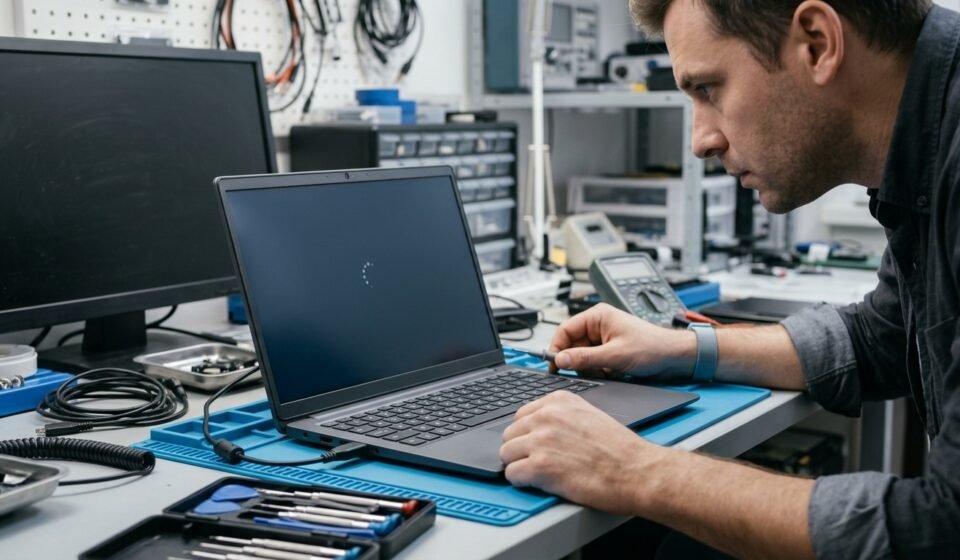

A laptop stuck on the loading screen can be frustrating, especially when Windows refuses to open after restarting or installing an update. You may see the manufacturer’s logo, a Windows logo with spinning dots, or a screen that remains frozen without reaching the desktop.
This problem can happen because of corrupted Windows files, failed updates, incompatible drivers, connected USB devices, or hardware issues involving the SSD or RAM.
Fortunately, several troubleshooting methods can help restore normal startup. This guide explains 10 practical ways to fix a laptop loading screen stuck problem, starting with simple solutions before moving to advanced Windows recovery options.
Why Is My Laptop Stuck on the Loading Screen?
A laptop may freeze during startup when Windows cannot complete one of its essential loading processes. The cause can be software-related or connected to a hardware component.
Common reasons include:
- Failed Windows updates: An interrupted or unsuccessful update can prevent Windows from starting normally.
- Corrupted system files: Damaged Windows files may stop the operating system from completing startup.
- Incompatible drivers: A problematic graphics, storage, or other device driver can cause startup freezes.
- Connected external devices: USB drives, printers, external storage, and other accessories can sometimes interfere with startup.
- SSD or HDD problems: A damaged or undetected storage drive may prevent Windows from loading.
- RAM problems: Faulty memory can cause startup errors, freezing, or unexpected restarts.
- Boot configuration issues: Incorrect or damaged startup information can prevent Windows from opening.
- Overheating or power problems: Hardware instability can interrupt the startup process.
Identifying when the laptop freezes can help you choose the correct repair instead of trying every solution randomly.
What to Do Before Trying Advanced Fixes
Before making changes to Windows, perform a few basic checks.
First, make sure the laptop is connected to a working power adapter. If the battery is low or the power supply is unstable, startup may be interrupted.
Next, check whether Windows is still installing an update. If you see an update progress message or an active progress indicator, give it additional time. Interrupting an update unnecessarily can create further problems.
Also, identify which screen is frozen:
- Manufacturer logo, such as HP, Dell, Lenovo, or ASUS.
- Windows logo with spinning dots.
- Black screen with a visible cursor.
- Automatic Repair or Preparing Automatic Repair.
- Restarting repeatedly without reaching the desktop.
These screens can indicate different startup problems.
10 Ways to Fix a Laptop Stuck on the Loading Screen
1. Force Restart Your Laptop Safely
A temporary software freeze can sometimes prevent Windows from completing startup.
If the laptop has remained completely unresponsive and there is no indication that an update or recovery operation is running, a forced shutdown may help.
Follow these steps:
- Press and hold the power button until the laptop turns off.
- Wait approximately 20–30 seconds.
- Press the power button again.
- Allow the laptop to attempt a normal startup.
Avoid repeatedly forcing the laptop off. Interrupting an active update or disk-repair operation can damage Windows files or create additional startup problems.
2. Disconnect External Devices
Connected accessories can sometimes interfere with the startup process.
For example, a laptop may attempt to detect or start from an external storage device instead of its internal Windows drive.
Disconnect unnecessary accessories, including:
- USB flash drives.
- External hard drives.
- Printers.
- Memory card readers.
- USB hubs.
- External keyboards and other accessories.
Keep the power adapter connected, then restart the laptop.
If Windows starts normally, reconnect your devices one at a time to identify whether a particular accessory is causing the problem.
3. Perform a Power Reset
A power reset can help resolve temporary hardware or power-state problems.
The procedure depends on your laptop’s design, so check the manufacturer’s instructions if your model has a removable battery or a dedicated reset feature.
For a typical laptop with a built-in battery:
- Turn off the laptop.
- Disconnect the power adapter.
- Remove connected external accessories.
- If the manufacturer provides a specific power-reset procedure, follow it.
- Reconnect the power adapter.
- Turn the laptop on again.
Do not open the laptop or disconnect its internal battery unless you are qualified to do so and the manufacturer permits it.
4. Enter Windows Recovery Environment
If Windows cannot start normally, Windows Recovery Environment (WinRE) provides built-in tools for repairing startup problems.
You may be able to access it through an Automatic Repair screen or Windows installation or recovery media.
If Windows repeatedly fails to start, it may automatically enter recovery mode.
Once you reach the recovery menu:
- Select Troubleshoot.
- Open Advanced options.
- Review the available recovery tools.
- Choose the repair option that matches your problem.
You may see options such as Startup Repair, System Restore, Uninstall Updates, Startup Settings, and Command Prompt.
Some recovery operations may request a BitLocker recovery key. Make sure you can access that key before proceeding.
5. Run Windows Startup Repair
Startup Repair is a built-in Windows recovery tool that can diagnose and attempt to repair certain problems preventing Windows from starting.
To use it:
- Enter Windows Recovery Environment.
- Select Troubleshoot.
- Choose Advanced options.
- Select Startup Repair.
- Choose your Windows installation if prompted.
- Follow the instructions on the screen.
Allow the process to finish without interrupting it.
Startup Repair can help with certain damaged startup files and configuration problems. However, it cannot repair every possible issue, particularly physical storage or memory failures.
If the repair does not resolve the problem, return to Advanced Options and consider another recovery method.
6. Uninstall the Latest Windows Update
If the laptop became stuck immediately after a Windows update, the update may be responsible.
Windows Recovery Environment provides an option to remove certain recent updates.
Follow these steps:
- Open Windows Recovery Environment.
- Select Troubleshoot.
- Choose Advanced options.
- Select Uninstall Updates.
- Choose the available option for removing the latest quality update or feature update.
- Follow the instructions.
A quality update usually contains security and reliability improvements, while a feature update introduces larger changes to Windows.
Start with the most recent update type that matches the timing of the problem. Available options depend on the installed Windows version and recovery environment.
Removing an update does not guarantee that startup will be repaired, but it can help when a recent update is responsible for the failure.
7. Start Windows in Safe Mode
Safe Mode starts Windows with a limited set of drivers and services. It can help identify whether a third-party driver or startup application is causing the loading-screen problem.
To access it:
- Enter Windows Recovery Environment.
- Select Troubleshoot.
- Open Advanced options.
- Select Startup Settings.
- Choose Restart.
- After restarting, press the appropriate number for Safe Mode, usually 4 or F4.
If Windows opens successfully in Safe Mode, consider the following actions:
- Remove recently installed applications.
- Uninstall a problematic driver.
- Roll back a recently updated driver.
- Check recently installed security or system utilities.
- Restart normally to see whether the problem has disappeared.
If Safe Mode also fails, the issue may involve deeper Windows corruption, boot configuration, or hardware.
8. Use System Restore
System Restore can return Windows system settings, drivers, and installed programs to an earlier restore point.
It is particularly useful if the loading-screen problem started after installing software, changing drivers, or modifying system settings.
To use it:
- Enter Windows Recovery Environment.
- Open Troubleshoot.
- Select Advanced options.
- Choose System Restore.
- Select your Windows account.
- Choose an available restore point created before the problem started.
- Follow the instructions to complete the restoration.
System Restore generally does not remove personal documents, pictures, or other personal files. However, applications, drivers, and system changes made after the selected restore point may be removed.
If no restore points are available, this option may not be usable.
9. Check System Files and Storage
If Windows can open in Safe Mode or you can access an appropriate recovery command environment, checking system files may help.
The System File Checker tool can identify and attempt to repair damaged Windows system files.
When Windows is running, open Command Prompt as an administrator and run:
sfc /scannowWait until the verification process finishes.
For Windows installations that need component-store repair, the Deployment Image Servicing and Management tool may also be useful:
DISM /Online /Cleanup-Image /RestoreHealthThese commands are intended for a running Windows installation. Recovery environments may require different commands and drive-letter identification, so do not assume that the Windows installation is always on drive C:.
If the laptop shows storage errors, the SSD is not detected, or the drive makes unusual noises, prioritize data protection and professional diagnosis instead of repeatedly running repair commands.
10. Run Manufacturer Hardware Diagnostics
If software repairs do not work, investigate whether a hardware component is preventing normal startup.
Many laptop manufacturers provide built-in diagnostic tools.
Examples include:
- HP hardware diagnostics.
- Dell SupportAssist or preboot diagnostics.
- Lenovo UEFI diagnostics.
- ASUS hardware diagnostic utilities.
The available diagnostic method and startup key depend on the laptop model.
Check the manufacturer’s support documentation for the correct procedure.
Pay particular attention to:
- SSD or HDD health.
- RAM errors.
- Battery and power problems.
- Cooling and overheating symptoms.
- Motherboard-related diagnostic failures.
If a diagnostic tool reports a storage or memory failure, replacing or repairing the faulty component may be necessary. If important files are stored on the affected drive, consider professional data recovery before reinstalling Windows.
How to Fix a Laptop Stuck After a Windows Update
If the laptop started freezing immediately after an update, focus on update-related recovery methods.
First, allow sufficient time if an update is visibly progressing. If the system remains frozen and unresponsive, use the recovery options described earlier.
The recommended sequence is:
- Enter Windows Recovery Environment.
- Try Startup Repair.
- Use Uninstall Updates to remove the most recent problematic update.
- Try Safe Mode if Windows still cannot start.
- Use System Restore if an appropriate restore point exists.
Avoid repeatedly interrupting the update process. Also, do not download random Windows repair files from unofficial websites.
What If Your Laptop Is Still Stuck on the Loading Screen?
If none of the previous methods works, the problem may be more serious than a temporary Windows startup error.
Check whether the internal SSD is detected in BIOS/UEFI. Do not change random boot settings or reset firmware settings without understanding their effect.
If the storage drive is missing, the laptop may have a drive connection or hardware problem.
Other warning signs include:
- Repeated unexpected shutdowns.
- Unusual clicking or grinding sounds from a mechanical hard drive.
- Hardware diagnostic failures.
- Frequent overheating.
- Blue screens before Windows loads.
- A laptop that freezes even when accessing firmware or diagnostics.
If you suspect a hardware fault, contact a qualified technician. Avoid factory resets or Windows reinstallation until important files are backed up or their recovery options have been assessed.
When Should You Contact a Laptop Repair Technician?
Professional assistance is appropriate when the laptop cannot detect its storage drive, hardware diagnostics report errors, or the computer continues freezing after Windows recovery procedures.
You should also seek help if the laptop has suffered liquid damage, physical damage, repeated overheating, or unusual electrical behavior.
If important data is stored on a failing drive, explain that data preservation is your priority before authorizing repairs. A technician can assess the hardware and determine whether recovery, component replacement, or Windows repair is appropriate.
Frequently Asked Questions
1. Why is my laptop stuck on the loading screen?
A laptop may freeze during startup because of a failed Windows update, corrupted system files, incompatible drivers, connected external devices, boot configuration problems, or faulty hardware such as an SSD or RAM module.
2. How long should I wait if my laptop is stuck on spinning dots?
If Windows is visibly installing an update, allow additional time for the process to finish. If there is no progress and the laptop remains completely unresponsive for an extended period, investigate the problem using safe startup and recovery procedures.
3. Can I fix a laptop stuck on the loading screen without losing files?
Yes, several options are designed to repair startup problems without intentionally deleting personal files. Startup Repair, update removal, and System Restore are possible options. However, back up important data whenever possible before performing advanced recovery operations.
4. Why does my laptop get stuck after a Windows update?
A recent update may introduce an incompatible driver, damaged system files, or startup configuration problems. Using Windows Recovery Environment to uninstall the latest update or run Startup Repair may help restore normal startup.
5. Can a faulty SSD cause a laptop to freeze during startup?
Yes. If an SSD is failing, disconnected, or not detected correctly, Windows may be unable to access essential startup files. Manufacturer hardware diagnostics and BIOS/UEFI storage detection can help identify the problem.
Conclusion
A laptop stuck on the loading screen can result from Windows update failures, corrupted system files, incompatible drivers, or hardware problems. Start with simple checks, then use Startup Repair, update removal, Safe Mode, and System Restore. Protect important files before advanced recovery. If hardware diagnostics reveal faults, seek professional assistance rather than repeatedly reinstalling Windows.
Related Post



[…] or an external monitor appears unclear. The problem may start after a Windows update, a graphics driver change, or an adjustment to display […]