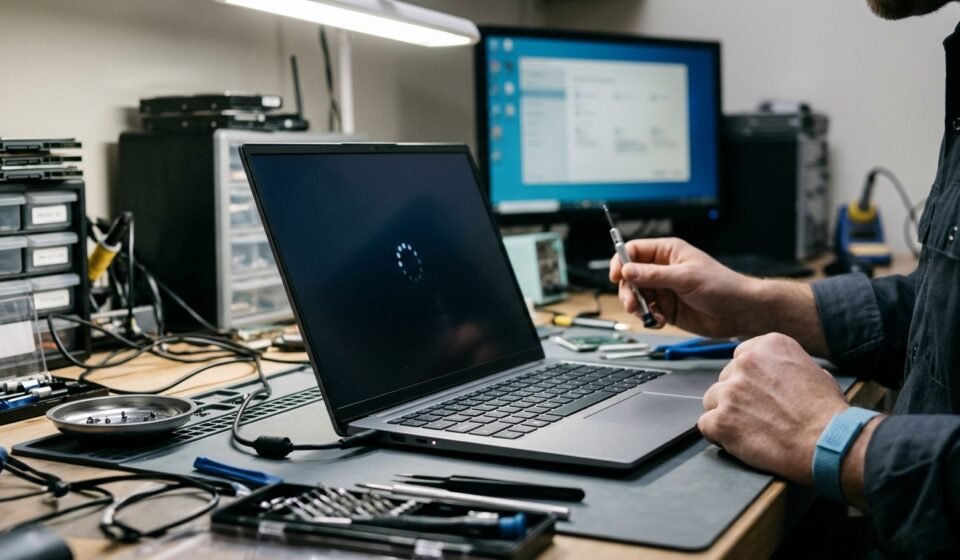

A laptop looping startup can be frustrating, especially when the computer repeatedly restarts without reaching the Windows login screen. This problem is commonly called a boot loop. It can happen after a Windows update, a driver installation, corrupted system files, incorrect boot settings, or a hardware failure.
Sometimes the laptop displays its manufacturer’s logo before restarting. In other cases, it shows the Windows loading screen, enters Automatic Repair, or switches off and starts again.
The right solution depends on where the startup process stops. This guide explains the common causes of a laptop boot loop and provides practical methods to troubleshoot the problem while reducing the risk of losing important files.
What Does a Laptop Boot Loop Mean?
A laptop boot loop occurs when a computer repeatedly attempts to start but cannot complete the startup process. Instead of loading Windows normally, it restarts and repeats the same sequence.
For example, the screen may display the Dell, HP, Lenovo, ASUS, or Acer logo before restarting. Another laptop might show a Windows loading animation or the message Preparing Automatic Repair.
A boot loop can be related to software, firmware, or hardware. Identifying the stage where the restart happens is important because different problems require different solutions.
Why Does a Laptop Keep Restarting During Startup?
Several issues can prevent a laptop from starting Windows successfully.
1. Corrupted Windows System Files
Windows needs important system files to load correctly. If these files become damaged or missing, the operating system may fail during startup.
Unexpected shutdowns, interrupted updates, disk errors, and malware can contribute to system-file corruption.
2. Failed Windows Updates
An incomplete or unsuccessful Windows update can prevent the computer from starting normally. This may happen when an update is interrupted or conflicts with existing software or drivers.
Some users experience repeated restarts shortly after installing an update.
3. Incompatible or Faulty Drivers
Drivers allow Windows to communicate with hardware components such as graphics cards, storage devices, and network adapters.
A damaged or incompatible driver can cause startup crashes, blue screens, and repeated restarts.
4. Damaged Boot Configuration
Windows uses boot-related files and configuration information to locate and load the operating system. If this information becomes damaged, the laptop may fail before reaching the login screen.
5. SSD or Hard Drive Problems
A failing storage device can prevent Windows from reading the files needed for startup. Warning signs may include unusual noises from a mechanical hard drive, missing storage detection in BIOS, repeated disk errors, or extremely slow access.
If you suspect physical drive failure and have important files, avoid repeated repair attempts. Consider professional data recovery before making changes.
6. Hardware or BIOS Problems
Faulty RAM, overheating, unstable power, motherboard problems, or incorrect BIOS/UEFI settings can also cause repeated restarts.
A laptop that switches off before Windows begins loading may have a hardware or power-related issue rather than a Windows problem.
What to Do Before Fixing a Laptop Boot Loop
Before trying advanced repairs, perform a few basic checks.
- Disconnect USB drives, external hard drives, printers, memory cards, and unnecessary accessories.
- Disconnect docking stations and other external devices.
- Check that the charger is connected securely and that the power adapter is appropriate for the laptop.
- Look for signs of overheating or physical damage.
- Remember whether the problem started after an update, driver installation, software change, or accidental shutdown.
If the laptop can access BIOS or UEFI, check whether its internal SSD or hard drive is detected. If the drive is missing, a Windows repair command will not solve the underlying detection problem.
If important files are not backed up, prioritize data recovery before attempting a reset or clean installation. Also keep your BitLocker recovery key available if Windows drive encryption is enabled.
How to Fix a Laptop Looping Startup Problem
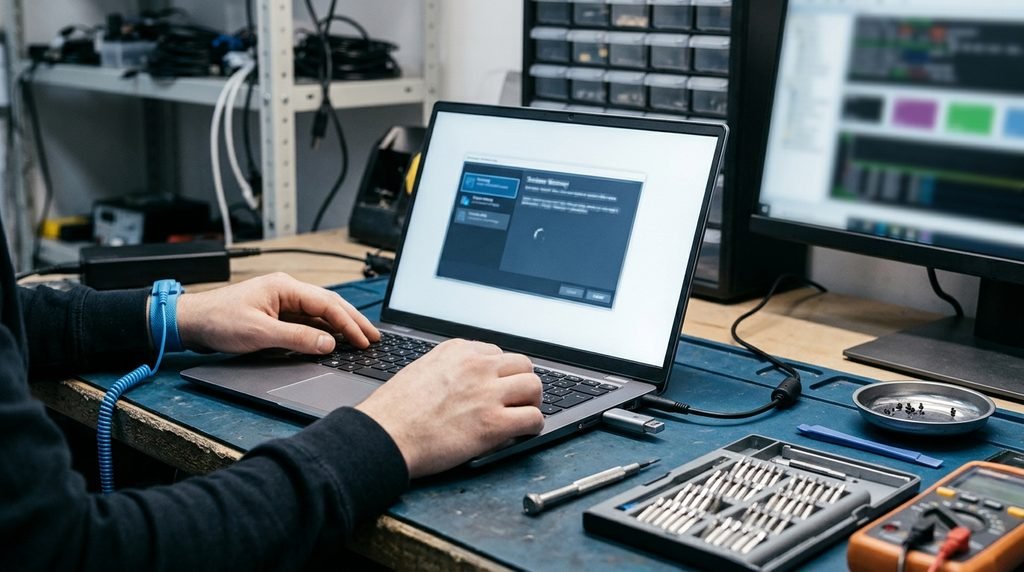
Try the following methods in order. Start with the least disruptive options and move to advanced recovery only when necessary.
1. Disconnect External Devices and Perform a Power Reset
External devices can occasionally interfere with startup, while a temporary power or hardware state can prevent a laptop from booting normally.
Follow these steps:
- Turn off the laptop.
- Disconnect the charger.
- Remove USB devices, memory cards, external drives, and other accessories.
- If the battery is designed to be removable, remove it according to the manufacturer’s instructions.
- Hold the power button for approximately 15–20 seconds.
- Reconnect the charger.
- Turn on the laptop and check whether Windows starts.
For laptops with internal batteries, do not open the device just to disconnect the battery unless you have the appropriate technical knowledge and manufacturer instructions.
If the laptop still restarts, continue to the next method.
2. Enter Windows Recovery Environment
Windows Recovery Environment, commonly called WinRE, provides tools for diagnosing and repairing startup problems.
If Windows fails to start correctly several times, the recovery environment may appear automatically. You can also access recovery through Windows installation media or the manufacturer’s recovery options.
To try accessing it:
- Turn on the laptop.
- If Windows starts loading but cannot complete startup, allow the recovery process to appear.
- If it displays Automatic Repair, select Advanced options.
- Open Troubleshoot.
- Select Advanced options.
Avoid repeatedly forcing shutdowns. Interrupting startup can sometimes trigger recovery, but repeated power interruptions may create additional problems.
If recovery does not appear, use a Windows installation USB created on another working computer. Boot from that USB and choose the repair option instead of immediately selecting installation.
3. Run Windows Startup Repair
Startup Repair is designed to diagnose and fix certain problems that prevent Windows from loading.
To use it:
- Open Windows Recovery Environment.
- Select Troubleshoot.
- Choose Advanced options.
- Select Startup Repair.
- Choose your Windows installation if requested.
- Follow the instructions and wait for the process to finish.
The computer may restart after the repair.
Startup Repair can address certain problems involving system files and boot configuration, but it cannot fix every hardware or software failure. If it reports that it could not repair your PC, try another appropriate recovery method.
4. Uninstall a Recent Windows Update
If the boot loop started immediately after a Windows update, removing the recent update may help.
Follow these steps:
- Enter Windows Recovery Environment.
- Select Troubleshoot.
- Open Advanced options.
- Choose Uninstall Updates.
- Start with Uninstall latest quality update.
- Follow the on-screen instructions.
A feature update may require the separate option to uninstall the latest feature update, if available.
This method is most relevant when the problem began after an update. It is not a guaranteed solution for hardware-related startup failures.
5. Use System Restore
System Restore can return certain Windows system settings, drivers, and installed programs to an earlier restore point.
It may help when a recent software change has caused a startup problem.
To use it:
- Open Windows Recovery Environment.
- Select Troubleshoot.
- Choose Advanced options.
- Select System Restore.
- Choose an available restore point from before the problem started.
- Follow the instructions.
System Restore does not normally remove personal documents, but it can affect recently installed applications, drivers, and system changes.
A restore point must already exist for this option to work.
6. Start Windows in Safe Mode
Safe Mode starts Windows with a limited set of drivers and services. It can help identify whether a third-party driver or application is causing the startup issue.
To access it:
- Open Windows Recovery Environment.
- Select Troubleshoot.
- Choose Advanced options.
- Open Startup Settings.
- Select Restart.
- After the computer restarts, choose Safe Mode using the displayed option.
If Windows starts in Safe Mode, consider uninstalling a recently installed driver or application that may have caused the problem.
You can also check Device Manager for hardware devices with driver errors.
If Safe Mode works but normal startup does not, a driver, startup application, or background service may be responsible.
7. Check BIOS and Storage Detection
If Windows Recovery Environment is unavailable, check whether the laptop can access BIOS or UEFI.
The BIOS access key depends on the manufacturer and model. Common keys include F2, F10, F12, Esc, and Delete, but not every laptop uses the same key.
Once inside BIOS:
- Check whether the internal SSD or hard drive appears.
- Review the boot order.
- Confirm that the correct Windows boot device is selected.
- Look for built-in hardware diagnostic options if available.
Avoid changing unfamiliar storage-controller settings, Secure Boot settings, or boot modes without understanding their purpose. Incorrect changes can make an otherwise working installation unbootable.
If the internal drive is not detected, contact the laptop manufacturer or a qualified technician to investigate the storage connection or possible drive failure.
How to Fix a Boot Loop Without Losing Files
Protecting personal data should be a priority when a laptop cannot start.
Before selecting Reset this PC, reinstalling Windows, or formatting a drive, consider these options:
Use an existing backup: If your documents and photos are already backed up to an external drive or cloud storage, confirm that the backup is accessible.
Recover files using another computer: If the storage drive is healthy and removable, a technician may be able to connect it to another computer using an appropriate enclosure or adapter.
Use recovery tools carefully: Some recovery environments allow access to files before Windows is repaired. However, access may be restricted by drive encryption or hardware problems.
Check BitLocker requirements: If the drive is encrypted, you may need the BitLocker recovery key to access its contents.
If the drive is making unusual mechanical noises, disappearing during detection, or reporting serious errors, stop experimenting with repair commands. Repeated attempts can worsen some failing-drive situations.
When to Reset or Reinstall Windows
Resetting or reinstalling Windows may become necessary when normal recovery options fail and the operating system remains damaged.
Windows Reset offers options that may preserve personal files or remove everything. However, even a keep-my-files reset can remove applications and settings, and it should not be treated as a substitute for a backup.
A clean Windows installation is more disruptive and can erase data depending on the installation choices.
Before proceeding:
- Back up important files whenever possible.
- Confirm that you have the required Windows installation media.
- Keep the BitLocker recovery key available.
- Check that the laptop’s storage device is healthy.
- Understand which partitions or files may be affected.
Do not reinstall Windows simply because the laptop displays a manufacturer’s logo or restarts repeatedly. First determine whether the issue is related to Windows, storage, firmware, or another hardware component.
When to Contact a Laptop Repair Technician
Professional assistance may be necessary if the laptop continues restarting after basic troubleshooting.
Consider contacting a qualified technician when:
- The internal SSD or hard drive is not detected.
- The laptop repeatedly shuts down before reaching Windows.
- Built-in hardware diagnostics report errors.
- The computer shows signs of physical damage or overheating.
- The device cannot access BIOS or recovery options.
- Important files are stored on a potentially failing drive.
For Dell, HP, Lenovo, ASUS, Acer, and other brands, manufacturer support may also provide model-specific diagnostics and recovery instructions.
Frequently Asked Questions
1. Why does my laptop keep restarting during startup?
A laptop may repeatedly restart because of corrupted Windows files, failed updates, incompatible drivers, damaged boot configuration, storage problems, or faulty hardware. The cause depends on where the startup process stops.
2. How do I fix a laptop stuck in an infinite boot loop?
Disconnect external devices, perform a suitable power reset, and try accessing Windows Recovery Environment. From there, consider Startup Repair, uninstalling a recent update, or using System Restore. Check hardware if Windows recovery cannot resolve the problem.
3. Can Startup Repair fix a laptop boot loop?
Startup Repair can fix certain Windows startup problems, including some damaged system files and boot configuration issues. However, it cannot repair a physically failing SSD, faulty RAM, or every type of software problem.
4. How can I fix a boot loop without losing my files?
Start with less destructive recovery options, such as Startup Repair, update removal, and System Restore. Back up important files before resetting or reinstalling Windows. If the drive may be failing, seek professional data recovery advice.
5. Can a damaged SSD or hard drive cause a startup loop?
Yes. A failing storage device may prevent Windows from accessing essential startup files. If the drive is missing from BIOS, produces errors, or shows other failure symptoms, have it checked before attempting further repairs.
Conclusion
A laptop looping startup can result from Windows errors, failed updates, driver conflicts, or hardware problems. Start with basic checks, then use Windows recovery tools before considering a reset or reinstall. Protect important files throughout the process. If the storage drive is failing or the laptop cannot access recovery options, seek professional assistance to prevent further damage and data loss.
Related Post



[…] problem can happen because of corrupted Windows files, failed updates, incompatible drivers, connected USB devices, or hardware issues involving the SSD […]
[…] Laptop Looping Startup – Causes and How to Fix a Boot Loop! […]