

Laptop screen pressure damage is a common display problem that can happen when excessive force is applied to a laptop lid or screen. It may appear as white spots, dark patches, cloudy areas, bright marks, or unusual lines across the display. Sometimes, the damage occurs without leaving a visible crack on the outer glass or screen surface.
Pressure damage can happen when a laptop is carried in an overcrowded backpack, stored under heavy objects, or closed while something is resting on the keyboard. Although some marks are simply dirt or surface residue, internal LCD damage usually cannot be removed with ordinary cleaning.
Understanding the symptoms and possible causes can help you avoid making the problem worse. This guide explains how to identify laptop screen pressure damage, what repair options are available, and how to protect your display from future problems.
What Is Laptop Screen Pressure Damage?
Laptop screen pressure damage occurs when excessive physical force affects the display panel. In LCD screens, pressure can disturb internal layers or damage components responsible for producing images.
Modern laptop displays are relatively thin and delicate. Even when the outer surface looks normal, pressure can sometimes affect the internal structure of the panel.
The resulting marks may appear as:
- White or bright spots.
- Dark patches or blotches.
- Cloudy areas that remain visible on different backgrounds.
- Colored lines or unusual discoloration.
- Irregular shapes that resemble bruises.
- Areas where the display looks brighter or darker than surrounding sections.
Pressure damage does not always create an obvious crack. A laptop can have an apparently intact screen while still showing internal display defects.
What Does Pressure Damage on a Laptop Screen Look Like?
The appearance of pressure damage depends on the display technology, the location of the pressure, and the severity of the affected area.
Recognizing the symptoms can help you distinguish possible physical damage from ordinary screen dirt or software problems.
White or Bright Spots
White or bright spots may appear when pressure affects the display’s internal structure. They can become especially noticeable when the screen displays a dark image or a plain background.
Unlike dust on the screen surface, these spots generally remain visible after gentle cleaning.
Dark Pressure Marks
Dark blotches may look like small bruises or irregular shadows. They can appear near the center, edges, or corners of the display.
These marks may become more noticeable when displaying white or light-colored content.
Cloudy or Discolored Areas
Some damaged areas appear cloudy, faded, or slightly different in color from the surrounding screen.
They may be difficult to notice while watching videos but become obvious when viewing a solid-colored background.
Lines Across the Display
Pressure can sometimes accompany other physical damage, including horizontal or vertical lines. However, lines can also result from a damaged display cable, panel electronics, or graphics-related problems.
A technician may need to inspect the laptop to determine the actual cause.
What Causes Laptop Screen Pressure Damage?
Several everyday situations can put excessive pressure on a laptop display. Understanding these causes is important because many pressure-related problems are preventable.
1. Carrying a Laptop in an Overfilled Backpack
A crowded backpack can place pressure on a laptop from several directions.
Chargers, books, water bottles, headphones, and other accessories may press against the laptop lid. If the bag is squeezed or dropped, that pressure can transfer to the display.
Using a suitable padded laptop compartment and keeping heavy objects away from the screen can reduce this risk.
2. Closing the Laptop With Objects on the Keyboard
Small objects can become trapped between the keyboard and screen when the lid is closed.
Common examples include:
- Pens and pencils.
- Earbuds.
- USB drives.
- Paper clips.
- Small cables.
- Other accessories.
Even a relatively small object can concentrate force on one part of a thin display panel.
Always check the keyboard area before closing your laptop.
3. Placing Heavy Objects on a Closed Laptop
Putting books, bags, boxes, or other heavy items on a closed laptop can create pressure on the display assembly.
The lid may distribute some of the force, but excessive weight can still affect the screen.
Avoid using your laptop as a shelf or placing heavy objects on top of it, even when it is switched off.
4. Using a Poorly Fitting Laptop Sleeve
A laptop sleeve that is too tight may put continuous pressure on the lid.
The risk can increase when additional accessories are stored in the same compartment.
Choose a sleeve that fits your laptop properly without forcing the device into a cramped space.
5. Pressing or Grabbing the Screen
Holding a laptop by its display, pushing the lid with excessive force, or pressing directly against the screen can stress the panel.
When opening or closing your laptop, use the intended gripping area and follow the manufacturer’s handling instructions.
6. Bending or Twisting the Laptop Lid
Uneven force on the lid can transfer pressure to the display assembly.
This may happen when someone lifts a laptop from one corner, twists the lid, or carries it while it is partially open.
Handle the laptop carefully and avoid forcing its hinges.
How to Check Whether Your Laptop Screen Has Pressure Damage
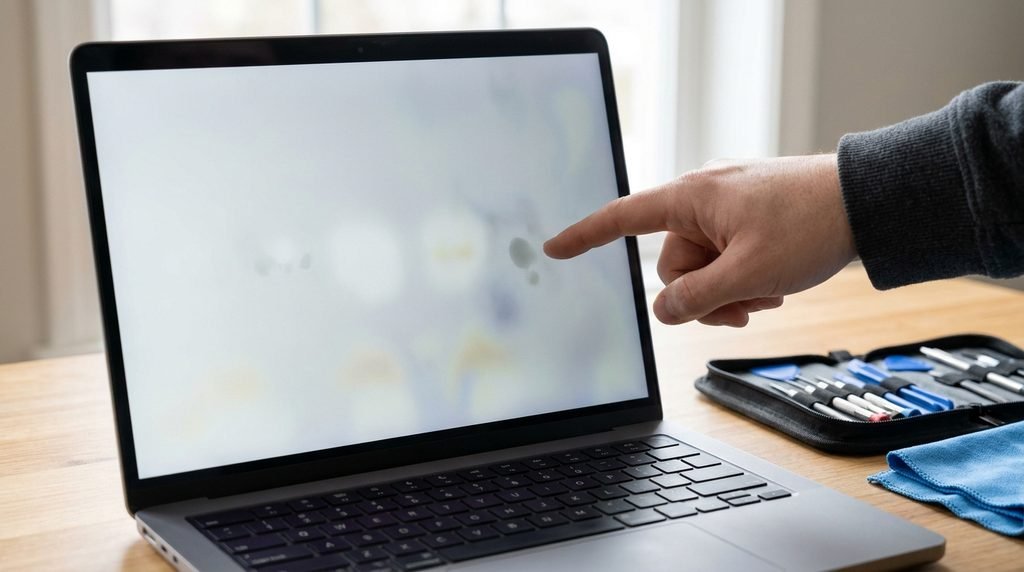
Before paying for a repair, perform a few simple checks. These steps can help you identify whether the problem is likely related to the physical display panel.
Step 1: Inspect the Screen Surface
Turn off the laptop and examine the display under suitable lighting.
Look for visible cracks, scratches, dents, or marks that may be sitting on the outer surface.
If you see a physical crack or signs of severe damage, avoid applying pressure or attempting to manipulate the affected area.
Step 2: Clean the Screen Gently
If the mark might be dust or residue, use a clean microfiber cloth and follow your laptop manufacturer’s screen-cleaning instructions.
Do not spray liquid directly onto the display. Avoid household cleaners, abrasive materials, and excessive moisture.
If the mark remains in exactly the same place after appropriate cleaning, it may be internal damage rather than surface dirt.
Step 3: Check Different Background Colors
Display a plain white, black, or gray background.
Observe whether the mark remains visible and whether its appearance changes with different colors.
Pressure-related defects often remain visible across different backgrounds, although their brightness and appearance can vary.
Step 4: Take a Screenshot
Capture a screenshot while the display problem is visible.
Open that screenshot on another device or an external monitor.
If the mark does not appear in the screenshot, the problem may be related to the physical display panel rather than the image generated by the computer.
This test is helpful but not conclusive. Other hardware problems can also affect the physical display without appearing in a screenshot.
Step 5: Connect an External Monitor
If possible, connect your laptop to an external monitor or television.
If the external display looks normal while the laptop screen continues showing the same mark, the internal display assembly becomes a more likely source of the problem.
A technician can investigate further if the issue remains unclear.
Pressure Damage vs. Other Laptop Screen Problems
Not every unusual screen mark is caused by pressure. Several other display problems can produce similar symptoms.
| Display problem | Common appearance | Possible cause |
|---|---|---|
| Pressure damage | White spots, dark blotches, cloudy patches | Physical force on the display |
| Surface dirt | Smudges or removable marks | Dust, fingerprints, residue |
| Scratches | Visible lines or marks on the surface | Contact with sharp objects |
| Dead pixels | Tiny black or colored dots | Defective individual pixels |
| Backlight bleeding | Uneven light around screen edges | Backlight and panel construction |
| Display cable issue | Flickering, lines, intermittent image | Loose or damaged internal cable |
| Screen cracking | Visible fractures or irregular lines | Physical impact or excessive force |
The distinction matters because different problems require different solutions. Cleaning may remove surface residue, while internal panel damage generally requires professional repair or replacement.
Can Laptop Screen Pressure Damage Be Fixed?
Whether pressure damage can be fixed depends on the type and severity of the problem.
If the mark is caused by dirt or residue, gentle cleaning may solve it. However, if pressure has physically damaged the internal display layers, cleaning products and software adjustments will not restore the original condition.
When Professional Repair May Help
A technician can inspect the display and determine whether the problem involves the panel, display cable, hinge, or another component.
Depending on the diagnosis, possible solutions include:
- Reconnecting or replacing a damaged display cable.
- Repairing a related hinge or mounting problem.
- Replacing the affected LCD panel.
- Replacing the complete display assembly when necessary.
Most internal LCD pressure damage cannot be repaired by simply treating the visible spot. Panel replacement is often the practical solution when the damage is permanent.
When Should You Replace the Screen?
Screen replacement may be appropriate when:
- Pressure marks remain visible after gentle cleaning.
- Dark or bright patches interfere with normal use.
- The display develops persistent lines.
- The screen flickers or shows additional damage.
- A technician confirms that the panel is physically damaged.
Before approving a replacement, request a diagnosis and estimate. Compare the repair cost with the laptop’s age, condition, and current market value.
What You Should Never Do to Remove Pressure Marks
Searching for a quick solution can lead people to try methods that may damage the display further.
Avoid the following approaches when dealing with suspected pressure damage.
Do Not Press or Massage the Damaged Area
Pressing the mark in an attempt to move or redistribute internal display material can create additional damage.
Even light pressure may worsen an already weakened panel.
Avoid Hairdryers and Heat Guns
Applying heat to a laptop screen is not a reliable repair method.
Excessive heat can affect display layers, adhesives, coatings, and surrounding components. Do not use a hairdryer or heat gun to try to remove pressure spots.
Do Not Use Toothpaste or Abrasive Cleaning Products
Toothpaste, polishing compounds, and rough materials can scratch or damage the screen’s surface coating.
They cannot restore internal LCD layers affected by pressure.
Avoid Warm Compresses and DIY Polishing
Applying warm materials or attempting to polish a pressure-damaged screen is not a dependable solution.
Follow manufacturer cleaning instructions and seek professional assistance if the defect is internal.
Does Laptop Screen Pressure Damage Get Worse Over Time?
Pressure damage does not necessarily spread by itself. A stable display defect may remain in the same condition for a long time.
However, additional physical pressure, lid movement, or another impact can make an existing problem worse.
Pay attention to warning signs such as:
- New dark or bright patches.
- Lines appearing across the display.
- Increasing discoloration.
- Flickering.
- A growing cracked area.
- Display sections becoming difficult to read.
If these symptoms develop, stop applying pressure to the screen and arrange a professional inspection.
If the display is cracked, unstable, or exposing internal components, avoid continued use until it has been assessed.
Is Laptop Screen Pressure Damage Covered by Warranty?
Warranty coverage depends on the manufacturer, laptop model, country, and specific protection plan.
Standard manufacturer warranties generally distinguish manufacturing defects from accidental physical damage. A pressure-damaged screen may therefore be excluded from ordinary coverage when the damage results from mishandling or external force.
However, some extended protection or accidental-damage plans may cover eligible incidents.
Before paying for a repair, check:
- Your laptop’s original warranty terms.
- Whether accidental-damage protection was purchased.
- The coverage period and exclusions.
- Whether an authorized service center must inspect the device.
- Whether unauthorized repairs could affect your coverage.
Do not assume that every screen problem is automatically excluded or covered. Contact the manufacturer or authorized service provider and explain what happened.
How to Prevent Pressure Damage on a Laptop Screen
Preventing pressure damage is generally easier and less expensive than replacing a display.
A few everyday precautions can help protect your laptop.
Use a Properly Padded Laptop Bag
Choose a bag with a dedicated laptop compartment that fits your device.
Avoid packing heavy accessories directly against the screen. Store chargers and other equipment separately when possible.
Check the Keyboard Before Closing the Lid
Make sure there are no pens, cables, earbuds, or other objects resting on the keyboard.
Even small items can create concentrated pressure when the lid closes.
Avoid Placing Weight on Your Laptop
Keep books, bags, and heavy objects away from your laptop, whether it is open or closed.
Store the device on a stable, clean surface.
Handle the Display Carefully
Open and close the laptop gently. Avoid pushing directly on the screen or twisting the lid.
Follow the manufacturer’s instructions for handling and transporting the device.
Clean the Screen Properly
Use an appropriate microfiber cloth and manufacturer-approved cleaning guidance.
Do not use excessive force when cleaning. A display should never need hard rubbing to remove ordinary dust.
Store the Laptop Safely
Keep your laptop in a dry, protected location when it is not in use.
Avoid placing it where other objects can fall on it or where the lid may be squeezed.
Frequently Asked Questions
1. Can pressure marks on a laptop screen disappear?
Some temporary display irregularities may change, but permanent physical pressure damage generally does not disappear on its own. If a mark remains visible after gentle cleaning, professional inspection may be necessary.
2. Can I remove laptop screen pressure damage with a microfiber cloth?
A microfiber cloth can remove dust, fingerprints, and some surface residue. However, it cannot repair internal display damage. Clean gently and follow the manufacturer’s instructions.
3. Can a laptop keyboard cause pressure marks on the screen?
Yes. When a laptop is closed, keys or other objects can contact the display, especially if the device is under pressure. This can contribute to marks, scratches, or other display damage.
4. Is it safe to keep using a laptop with pressure damage?
A laptop with a stable, minor display mark may remain usable, but the defect should be monitored. If the screen develops cracks, flickering, spreading discoloration, or other serious symptoms, arrange a professional inspection.
5. Does pressure damage mean I need a new laptop?
No. In many cases, only the display panel or display assembly needs replacement. A technician can assess the damage and compare the repair cost with the value of the laptop before you decide.
Conclusion
Laptop screen pressure damage can result from everyday mistakes such as carrying a laptop in an overcrowded bag, closing the lid over an object, or placing heavy items on the device. It may appear as white spots, dark patches, cloudy areas, or unusual lines, even when the outer screen looks intact.
The safest approach is to inspect the display carefully, clean it gently if necessary, and use simple diagnostic checks to identify the likely source of the problem. Avoid pressing, heating, or polishing the affected area because these methods can make the damage worse.
If the marks remain, consult a qualified technician to determine whether the panel or another display component needs repair. With careful handling, proper storage, and a suitable laptop bag, you can reduce the risk of similar problems in the future.
Related Post



[…] the laptop displays its manufacturer’s logo before restarting. In other cases, it shows the Windows loading screen, enters Automatic Repair, or switches off and starts […]