

If your laptop screen has vertical lines, the problem may be caused by a temporary graphics issue, an outdated display driver, a loose display connection, or a damaged LCD panel. These lines can appear as thin black marks, colored stripes, flickering columns, or permanent lines running from the top to the bottom of the display.
The good news is that not every vertical line means you need a new screen. A few simple tests can help you identify whether the issue is related to Windows, the graphics system, or the laptop’s display hardware before you spend money on repairs.
This guide explains the most common causes of vertical lines on a laptop screen, how to troubleshoot them safely, and when professional repair may be necessary.
Why Does My Laptop Screen Have Vertical Lines?
Vertical lines can develop for several reasons. Understanding the possible cause helps you choose the right troubleshooting method instead of trying random fixes.
1. Damaged LCD Screen
A damaged LCD panel is a common possibility when vertical lines remain visible regardless of what you are doing on the laptop. The damage may result from an accidental drop, pressure on the lid, impact, or a manufacturing defect.
Common signs include:
- One or more permanent black or colored lines.
- Lines that remain visible during startup.
- A cracked display or dark patches near the lines.
- A section of the screen showing distorted colors.
Physical damage is not always obvious from the outside. Internal display components can be affected even when the glass or outer surface appears intact.
2. Loose or Damaged Display Cable
A laptop uses an internal display cable to transfer image information from the motherboard to the screen. If this cable or its connectors become damaged, loose, or worn, the display may develop vertical lines, flickering, or intermittent image problems.
If the lines change when you open or close the laptop lid, a cable or display-assembly problem becomes more plausible.
However, do not repeatedly move the lid to reproduce the issue or press around the screen. This can worsen an existing hardware fault.
3. Outdated or Faulty Graphics Drivers
Graphics drivers help Windows communicate with the laptop’s graphics hardware. A corrupted, incompatible, or outdated driver can sometimes cause display artifacts, unusual colors, flickering, or lines.
A software-related problem is more likely if the issue started after a driver update, Windows update, or change to display settings.
Updating or reinstalling the appropriate driver may help, but it will not repair a physically damaged LCD panel or cable.
4. Incorrect Display Settings
An unsupported resolution, refresh-rate setting, or graphics configuration can sometimes cause display abnormalities.
These settings are worth checking when the lines appeared after changing display options or connecting an external monitor. However, persistent, sharply defined vertical lines are not usually explained by resolution settings alone.
5. Graphics Hardware or Other Internal Problems
The graphics processing unit (GPU), motherboard, or another internal component can also contribute to display problems. A fault affecting the wider graphics system becomes more plausible when the issue appears on both the laptop screen and an external display.
These symptoms do not identify a specific failed component by themselves. Proper diagnostics may be needed before replacing expensive hardware.
How to Diagnose Vertical Lines on a Laptop Screen
Before attempting repairs, perform these tests in order. Each test provides useful clues about the source of the problem.
Step 1: Restart Your Laptop
A restart is a simple first step because temporary graphics glitches can sometimes disappear after the system reloads.
- Save your work and close open applications.
- Restart the laptop normally.
- Check whether the vertical lines remain after startup.
If the lines disappear, a temporary software or graphics issue may have been responsible. If they remain, continue with the following tests.
Step 2: Check the Screen During Startup
Restart the laptop and observe the display before Windows loads. Look for lines on the manufacturer’s logo screen or in the BIOS/UEFI interface, if accessible.
- Lines appear before Windows starts: A hardware or firmware-related problem becomes more likely.
- Lines appear only after Windows loads: A graphics driver, application, or operating-system issue becomes more plausible.
- Lines appear intermittently: The problem may depend on hardware connections, display behavior, or software conditions.
This test is a useful clue, not a definitive diagnosis. Some hardware faults may be intermittent, and startup behavior can vary by laptop model.
Step 3: Connect an External Monitor
If available, connect your laptop to an external monitor or television using a compatible HDMI, DisplayPort, or USB-C connection.
Check both displays carefully.
- External display looks normal: The internal screen, display cable, or laptop display assembly may be responsible.
- Both displays show similar lines: A graphics driver, GPU, motherboard, or another shared graphics component may be involved.
- External display also flickers or behaves inconsistently: Further software and hardware diagnostics are advisable.
A normal external display does not prove that the LCD panel itself is faulty. The internal display cable and connectors can produce similar symptoms.
Step 4: Take a Screenshot
A screenshot can help distinguish a problem with the image being generated from a problem with the physical display.
- Take a screenshot while the lines are visible.
- Open that screenshot on another device, if possible.
- Check whether the lines are present in the saved image.
If the screenshot looks normal on another device while the laptop screen still displays lines, the internal display hardware or its connection becomes more likely.
If the lines are also visible in the screenshot, a graphics-rendering or software issue is possible. This result is not conclusive, because some hardware or driver problems can behave differently depending on how the image is captured.
How to Fix Vertical Lines on a Laptop Screen
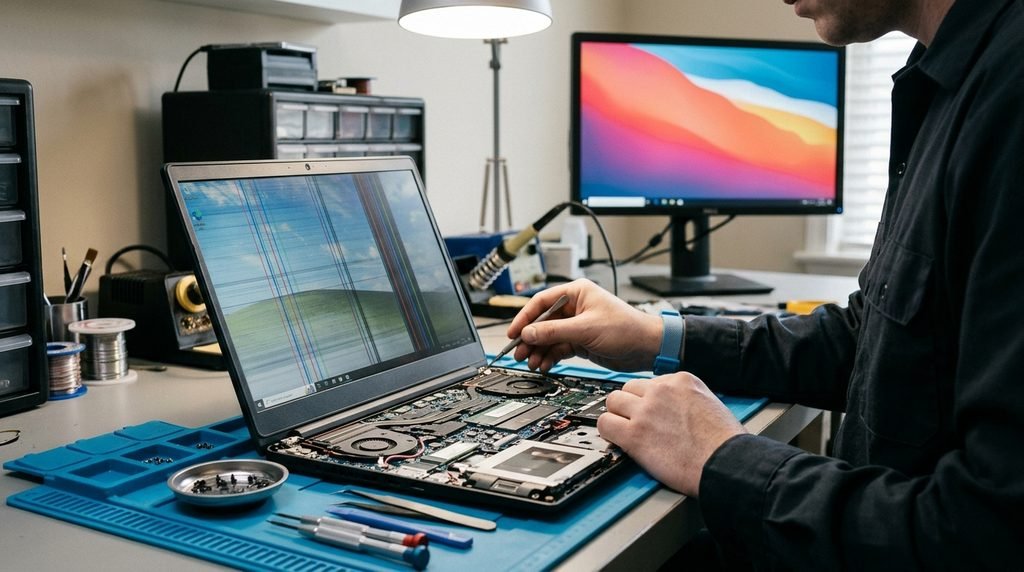
Once you have performed the initial tests, try the solutions that match your symptoms.
1. Update or Reinstall the Graphics Driver
If the lines appeared after a software update or only occur inside Windows, check your graphics driver.
On Windows 10 or Windows 11:
- Right-click the Start button.
- Open Device Manager.
- Expand Display adapters.
- Right-click your graphics adapter.
- Select Update driver and follow the available instructions.
You can also check your laptop manufacturer’s support application or official support website for a driver designed for your exact model.
If the issue began immediately after a driver update, open the graphics adapter’s Properties in Device Manager. If the option is available, use Roll Back Driver to return to the previous driver.
Restart the laptop and check whether the lines disappear. Avoid downloading drivers from unfamiliar websites.
2. Check the Screen Resolution and Refresh Rate
Incorrect display settings may contribute to some display abnormalities.
To check your settings in Windows:
- Open Settings.
- Select System, then Display.
- Choose the recommended display resolution.
- Open Advanced display.
- Select a refresh rate supported by your laptop’s screen.
The exact options depend on your laptop model and Windows version. If the problem started after changing these settings, restoring the recommended options is a sensible test.
Keep in mind that these changes are unlikely to fix physical damage to an LCD panel.
3. Perform a Full Shutdown
A full shutdown can help clear certain temporary system or graphics states.
- Save your files.
- Shut down the laptop completely.
- Disconnect external accessories.
- If the laptop has an external power adapter, disconnect it after shutdown.
- Wait briefly, reconnect the power adapter, and turn the laptop on.
Do not remove an internal battery or open the laptop just to perform this test. Follow your manufacturer’s instructions for any model-specific power-reset procedure.
4. Install Relevant Windows Updates
If the lines started after a system change, check Windows Update for available updates. Graphics or system compatibility issues may sometimes be addressed through appropriate updates.
Open Settings, select Windows Update, and check for available updates. Install relevant updates and restart if prompted.
If the issue began immediately after a particular update, investigate whether a compatible driver rollback or an official troubleshooting recommendation is available before removing system updates.
5. Run the Manufacturer’s Display Diagnostics
Many laptop manufacturers provide built-in or downloadable hardware diagnostics. These tools may help identify display problems or other hardware faults.
Check your manufacturer’s official support resources for instructions specific to your model. Some systems provide diagnostics through a startup menu, while others use a support application.
A diagnostic result can help guide the next step, but a test that reports no fault does not necessarily rule out an intermittent display cable or panel problem.
6. Avoid Pressing or Opening the Screen
Do not press firmly on the screen, twist the display, or repeatedly flex the laptop lid in an attempt to remove the lines. These actions can worsen panel or cable damage.
Opening the display assembly may also damage delicate connectors, antenna cables, hinges, or other components. Unless you have the appropriate experience and model-specific repair instructions, leave internal cable inspection and screen replacement to a qualified technician.
A factory reset or Windows reinstallation should not be your first response to permanent vertical lines. These procedures take time, can risk data loss, and are unlikely to repair a physical display fault.
When Does a Laptop Screen Need Repair or Replacement?
Professional repair is worth considering when the lines remain visible during startup, persist after appropriate software troubleshooting, or are accompanied by cracks, dark patches, or other visible damage.
The required repair depends on the component causing the problem.
- LCD panel damage: The screen may need replacement.
- Display cable or connector fault: A technician may be able to repair or replace the affected connection.
- Graphics or motherboard fault: More detailed diagnostics are needed to identify the failing component.
- Software-related issue: A suitable driver update, rollback, or configuration change may resolve the problem without replacing hardware.
How Much Does It Cost to Repair Vertical Lines?
There is no single repair price for every laptop. Costs depend on the manufacturer, model, screen size, panel type, part availability, labor charges, and local repair market.
A cable repair may cost less than replacing a specialized display panel, but this is not guaranteed. Some models require extensive disassembly, and the underlying fault may involve more than one component.
Before approving a repair, ask the technician to identify the suspected cause, provide a parts-and-labor estimate, and explain whether the repair includes a warranty. If your laptop is still covered by a manufacturer’s or seller’s warranty, check the applicable terms before paying for repairs.
Can You Keep Using a Laptop With Vertical Lines?
It may be possible to keep using a laptop with minor, stable display lines, especially if the rest of the system works normally. However, you should not assume the problem will remain unchanged.
If the lines are spreading, the screen is flickering severely, the display goes black, or the laptop has suffered physical damage, arrange an inspection. Back up important files while the laptop remains usable.
If the internal screen becomes difficult to read, an external monitor may provide a temporary workaround, provided the laptop’s other functions remain reliable.
Stop using the device and disconnect its power source if you notice unusual heat, a burning smell, liquid damage, or other signs of an electrical fault. Seek professional assistance rather than continuing to troubleshoot.
Frequently Asked Questions
1. Can vertical lines on a laptop screen be fixed without replacing the screen?
Yes, in some cases. If the cause is a graphics driver, software glitch, or display setting, troubleshooting may resolve it. A damaged LCD panel, however, may require replacement. Testing the screen during startup and connecting an external monitor can help narrow down the possibilities.
2. Why do vertical lines appear when I move my laptop lid?
Lines that change when the lid moves may indicate a problem with the internal display cable, its connectors, or the display assembly. Avoid repeatedly moving the lid to test the fault. A technician can inspect the connection and determine whether a cable repair or panel replacement is necessary.
3. Do vertical lines mean my laptop screen is broken?
Not always. Vertical lines can result from software, driver, graphics hardware, display cable, or LCD panel problems. If they remain visible before Windows starts or appear alongside physical damage, a hardware issue becomes more likely, but further testing may still be needed to identify the exact cause.
4. Why does my laptop have vertical lines, but my external monitor works normally?
A normal external monitor suggests that the issue may be limited to the laptop’s internal display path. The LCD panel, display cable, or connectors could be involved. However, this test alone cannot determine which component has failed, so additional diagnostics may be necessary.
5. Should I factory reset my laptop to remove vertical lines?
A factory reset is generally not the best first step. It may help in unusual cases involving software configuration, but it will not repair a damaged screen or faulty display cable. Try appropriate driver troubleshooting and manufacturer diagnostics first, and back up your files before considering any reset.
Conclusion
When your laptop screen has vertical lines, the most effective approach is to identify the likely cause before attempting a repair. Restart the device, check whether the lines appear during startup, test an external display, and investigate graphics drivers and display settings when the symptoms suggest a software issue.
If the lines remain visible outside Windows, change with lid movement, or appear alongside physical damage, the internal display hardware may need professional inspection. Avoid pressing the screen or replacing parts without a diagnosis. With a few careful tests, you can make a more informed decision about whether a software fix, cable repair, or screen replacement is appropriate.
Related Post



[…] can happen when excessive force is applied to a laptop lid or screen. It may appear as white spots, dark patches, cloudy areas, bright marks, or unusual lines across the display. Sometimes, the damage occurs […]