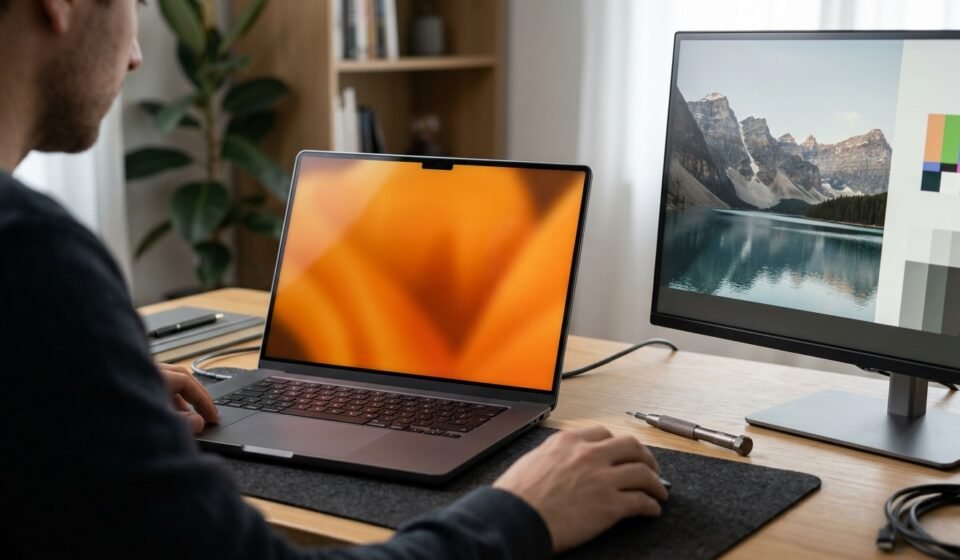

An orange laptop screen can be caused by a simple Windows display setting, an incorrect color profile, a graphics-driver problem, or an issue with the display hardware. The right solution depends on what the screen is doing.
If your laptop works normally but everything looks yellow or orange, start by turning off Night light and checking Windows color filters. If the screen has orange patches around its edges, or your laptop crashes to a solid orange screen, you may need a different troubleshooting approach.
This guide explains how to identify the problem, try the safest fixes first, and decide when professional help is necessary.
Why Is My Laptop Screen Orange?
The most common possibilities depend on the type of color change you see.
| What you notice | Possible cause | What to check first |
|---|---|---|
| The entire screen looks warm or yellow-orange | Night light or a color setting | Turn off Night light |
| Red objects appear orange or other colors look wrong | Color filters, color profile, or display calibration | Check accessibility and color settings |
| The screen has an orange tint after a driver or Windows update | Driver or display configuration change | Review recent updates and settings |
| Only the corners or edges look orange | Uneven display behavior or a panel issue | Run manufacturer diagnostics |
| The laptop suddenly crashes to an orange screen | Graphics-driver, software, or hardware instability | Record any error and troubleshoot the crash |
| The screen looks orange before Windows starts | Possible display, firmware, or hardware issue | Run the manufacturer’s pre-boot diagnostics |
These are starting points, not definitive diagnoses. Several different problems can produce similar colors.
How to Fix an Orange Screen on a Laptop
Try the following steps in order if Windows is running normally and the main problem is an orange or yellow tint.
1. Turn Off Night Light
Night light reduces blue light by making display colors warmer. Depending on its strength, the screen can look yellow, amber, or orange. A schedule may also turn it on automatically.
To check it in Windows 11:
- Press Windows + I to open Settings.
- Select System, then Display.
- Find Night light under the display or brightness and color options.
- Turn Night light off temporarily.
- Check whether white backgrounds and other colors return to normal.
If you prefer using Night light, open its settings and reduce the strength rather than disabling it permanently. Check the schedule if the tint returns at certain times.
Windows 10 has similar controls under Settings > System > Display.
2. Check Windows Color Filters
Color filters change the colors displayed across Windows. They are useful for accessibility, but an accidentally enabled filter can make colors appear unusual.
In Windows 11:
- Open Settings.
- Select Accessibility.
- Choose Color filters.
- Turn the feature off temporarily.
- Recheck red, white, and other familiar colors.
If the screen returns to normal, the filter was likely involved. If it does not, leave the setting in your preferred state and continue to the next step.
3. Check HDR and Display Color Settings
Some laptops support High Dynamic Range (HDR). Depending on the display, power state, and settings, HDR behavior can affect how colors appear.
To test it:
- Open Settings and select System > Display.
- Look for the HDR setting if your laptop supports it.
- Temporarily switch HDR off and compare the display.
- If the colors improve, review the HDR configuration and power settings before deciding whether to keep it disabled.
Do not assume HDR is responsible simply because your laptop supports it. This test is most useful when the color problem appears in particular applications, videos, or after a power-state change.
You can also check whether the laptop has a manufacturer utility that changes display temperature, eye comfort, or color modes. If you find one, temporarily return its settings to their defaults.
4. Review the Color Profile
A color profile helps Windows and compatible applications interpret and display colors. An incorrect or unsuitable profile can cause colors to look different from what you expect.
If you use your laptop for photography, illustration, video editing, or graphic design, this step deserves particular attention.
- Open Windows Settings and search for Color management.
- Select the built-in display if multiple displays are listed.
- Review the current color profile and any recent changes.
- If you recently installed a profile, test the manufacturer’s recommended profile or restore the previous known-good configuration.
Avoid deleting every profile or installing random profiles from the internet. A profile intended for another panel may make color accuracy worse.
If accurate color is essential for your work, a properly calibrated display and suitable measuring equipment may be needed. A screen that looks normal to the eye is not necessarily color-accurate.
5. Restart the Laptop
If the tint appeared suddenly, save your work and restart the computer.
A restart can clear a temporary graphics glitch, but it will not correct a persistent color setting, incompatible driver, or damaged display.
After restarting, check whether the color change returns immediately, only after signing in, or after opening a particular program. That timing can help narrow down the cause.
6. Check for Graphics Driver Problems

A graphics driver helps Windows communicate with the laptop’s display hardware. A faulty, incompatible, or recently changed driver can cause visual glitches or system instability.
If the orange screen began after a driver update:
- Right-click Start and open Device Manager.
- Expand Display adapters.
- Identify the graphics adapter listed.
- Open its Properties and review the Driver tab.
- If the issue began after a recent update, check whether the Roll Back Driver option is available.
You can also check Windows Update or your laptop manufacturer’s support page for a compatible graphics driver.
Use the driver intended for your exact model and Windows version. Avoid uninstalling the graphics driver as your first troubleshooting step; removing it may change which display features are available without fixing the original cause.
If the laptop is repeatedly crashing, back up important files before attempting more involved driver changes.
7. Check Whether the Problem Is Limited to One Application
If colors look wrong only in a browser, game, video player, or design program, the cause may be specific to that application.
Try these checks:
- Open the same image in another application.
- Disable any recently installed color-enhancement or display-adjustment features.
- Check whether the issue occurs only in full-screen mode.
- Review the application’s color-management and HDR settings, where available.
- Update the application if the issue began after a recent change.
If every application displays the same incorrect colors, investigate Windows settings, the graphics driver, and the display itself instead of focusing on one program.
What If Only the Edges of the Laptop Screen Are Orange?
Orange or yellow discoloration around the corners and edges is different from a uniform warm tint.
Night light and color filters normally affect the display broadly. If only certain regions are discolored, possible explanations include uneven panel behavior, physical damage, or a display component problem. The appearance alone cannot identify the exact fault.
Try the following:
- Restart the laptop and check whether the discoloration remains.
- Open a plain white or light-gray screen to see how widespread the discoloration is.
- Check whether the pattern changes when the screen brightness changes.
- Run the display or hardware diagnostics provided by your laptop manufacturer, if available.
- If the discoloration persists, arrange a professional inspection.
Do not press, twist, or squeeze the screen to test it. Pressure can worsen a damaged panel.
If the laptop was recently dropped, exposed to liquid, or repaired, mention that history to the technician. It may help them investigate the issue.
What Is the Orange Screen of Death?
The term Orange Screen of Death is sometimes used for a Windows system crash that displays an orange screen instead of the more familiar blue crash screen.
This is not the same as a laptop that starts normally but has a yellow-orange tint.
A crash screen may be associated with graphics-driver instability, software conflicts, hardware problems, or other system errors. An orange background alone does not prove that the graphics card has failed.
How to Troubleshoot an Orange Crash Screen
1. Record any error message. If Windows displays a stop code or other error, write it down or take a photo. The error details are more useful than the color alone.
2. Restart and observe when it happens. Does the crash occur during startup, when launching a game, while watching video, or under heavy workloads? A repeatable trigger can help identify the problem.
3. Disconnect nonessential peripherals. Remove external devices that are not needed to start the computer, then test again. If the crash disappears, reconnect devices one at a time.
4. Review recent changes. Consider whether a graphics driver, Windows update, game, or other application was installed just before the problem began.
5. Check graphics drivers and system stability. Use compatible drivers and investigate repeated crashes instead of assuming a single restart has resolved the issue.
6. Seek help if the computer repeatedly fails. Recurring crashes, unusual heat, burning smells, or failure to boot warrant further investigation. If you suspect an electrical or battery problem, stop using the device and seek qualified service.
Avoid overclocking or making BIOS changes as a first response. If Windows will not start, use the manufacturer’s recovery instructions or Windows recovery tools appropriate to your device.
How to Tell Whether the Problem Is Windows or the Screen Hardware
If the usual color settings have not helped, try to establish whether the color problem occurs outside the normal Windows desktop.
Check the screen before Windows loads
Restart the laptop and enter its BIOS/UEFI setup or manufacturer diagnostics using the procedure for your model. Some manufacturers provide a built-in display test.
Observe the colors in that environment if a suitable test is available.
- If the colors appear normal outside Windows but become orange after Windows loads: A Windows setting, graphics driver, application, or color-management issue becomes more plausible.
- If the colors are also incorrect in the pre-boot environment: A Windows-only setting becomes less likely, and display hardware or firmware deserves closer investigation.
This test is a clue, not a definitive verdict. Not every BIOS or diagnostic screen displays a full set of test colors.
Test an external monitor if you have one
Connect the laptop to a known-good external monitor or television, if available.
- If the external display looks normal while the built-in screen remains orange, the laptop’s internal display or its configuration becomes a stronger suspect.
- If both displays show similar incorrect colors, investigate Windows settings, graphics software, and the graphics output path.
Neither result identifies a failed component with certainty. If you do not have an external display, skip this test and use the other checks.
When Should You Contact a Repair Technician?
Seek manufacturer support or a qualified technician if:
- The orange discoloration persists after basic settings checks.
- Only part of the screen is discolored or the pattern is spreading.
- The display flickers, shows lines, or changes when the laptop lid moves.
- The laptop repeatedly crashes or cannot start Windows.
- The display appears abnormal during manufacturer diagnostics.
- You suspect physical damage, liquid exposure, or overheating.
If the laptop is under warranty, check the warranty terms before opening it or paying for a repair.
You usually do not need to reinstall Windows just because the screen has an orange tint. A clean installation cannot repair a defective panel, and it may introduce unnecessary work or risk to your files. Consider a Windows reset or reinstall only after simpler diagnostics and appropriate backups.
Frequently Asked Questions
Why is my laptop screen suddenly orange?
A scheduled Night light setting, enabled color filter, display-mode change, or graphics issue may cause an orange tint. If the screen changes suddenly, first check Night light and color filters. If the orange screen is part of a system crash, investigate it as a separate problem.
How do I remove the orange tint from a Windows 11 laptop?
Open Settings > System > Display and temporarily turn off Night light. If the tint remains, check Settings > Accessibility > Color filters. Next, review HDR, color profiles, and graphics-driver changes if they apply to your device.
Why does red look orange on my laptop?
Incorrect color settings or profiles can alter how red appears. Display calibration and panel characteristics can also affect color reproduction. If the issue persists after settings checks, test the display outside Windows or arrange a hardware assessment.
Is an orange laptop screen a sign of a damaged display?
Not necessarily. A uniform orange tint may be caused by software settings. Persistent edge discoloration, localized patches, lines, or abnormal colors during pre-boot diagnostics are stronger reasons to investigate a hardware problem.
Can a Windows update cause an orange screen?
An update may change a driver or display configuration, and a compatibility problem is possible. However, the timing alone does not prove that Windows is responsible. Review recent changes and use compatible manufacturer drivers before considering more disruptive recovery steps.
Should I reinstall Windows to fix an orange screen?
Usually not as an initial step. Check display settings, color filters, profiles, and drivers first. Reinstalling Windows is unlikely to fix physical panel damage and may create avoidable data-loss risks if you are not prepared.
What should I do if the orange screen appears while gaming?
If the laptop crashes, record the error code and note whether the crash occurs under heavy graphics workloads. Check recent driver or software changes, disconnect unnecessary peripherals, and investigate recurring instability. Do not assume the GPU is faulty without further evidence.
Final Thoughts
An orange screen on a laptop does not automatically mean the display is damaged. If Windows is running normally, start with Night light and color filters, then check HDR, color profiles, and graphics drivers as appropriate.
If the discoloration is concentrated around the edges, persists outside Windows, or appears with repeated crashes, move beyond basic settings and use manufacturer diagnostics or professional support.
The key is to identify what kind of orange-screen problem you have before attempting a repair. A targeted, reversible test is usually a better starting point than reinstalling Windows or replacing hardware without a diagnosis.
Related Post



[…] laptop has impressive specifications on paper. It’s whether the particular model offers the right combination of performance, build quality, upgradeability, support, and price for your […]