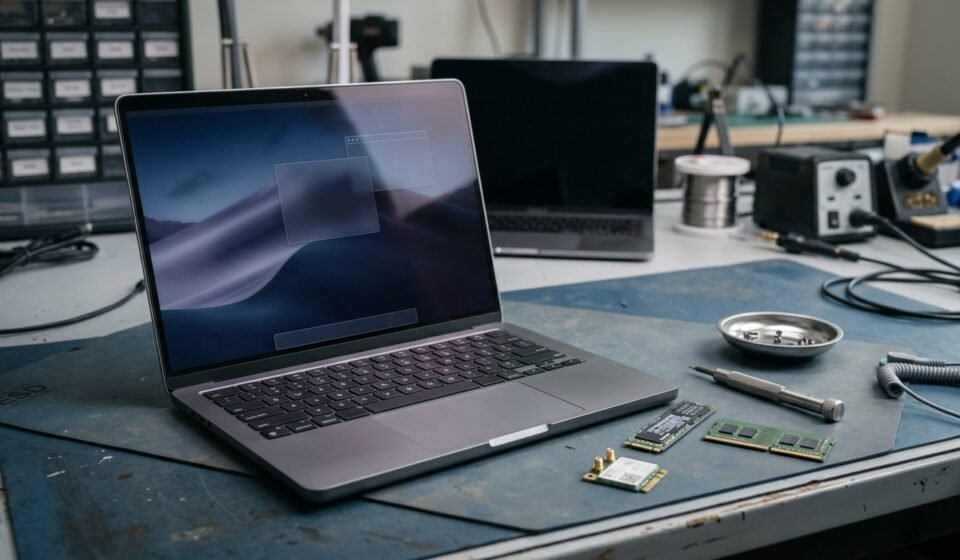

An OSx86 laptop is a non-Apple laptop configured to run macOS through the Hackintosh approach. Choosing a suitable machine is more complicated than finding a laptop with a fast processor and enough memory. The processor generation, graphics hardware, wireless adapter, firmware settings, and intended macOS version all affect the result.
If you are researching the best OSx86 laptop, start by identifying the exact hardware configuration and checking its compatibility with your target macOS release. Some older Intel-based business laptops are worth investigating, but no model should be treated as guaranteed to work without configuration-specific evidence.
It is also important to consider whether a Hackintosh is the right choice at all. Building one can be an interesting technical project, but maintaining a reliable macOS installation on non-Apple hardware can require ongoing troubleshooting.
What Is an OSx86 Laptop?
OSx86 is a term associated with efforts to run Mac OS X on x86-based personal computers. The term Hackintosh is commonly used for a non-Apple computer running macOS through an unofficial configuration.
The idea became especially prominent after Apple transitioned its Mac computers to Intel processors. Many PCs then shared a processor architecture with Intel-based Macs, although shared architecture did not mean that every PC component was compatible.
Modern Hackintosh setups commonly use OpenCore, a bootloader that helps prepare and start macOS on compatible non-Apple hardware. A successful configuration may also require carefully selected drivers, patches, and firmware settings.
The important distinction is that booting macOS is not the same as having a fully functional laptop. Graphics acceleration, wireless networking, sound, trackpad gestures, battery reporting, sleep, and external displays may behave differently depending on the hardware.
What Makes a Laptop Suitable for OSx86?
Before buying a laptop, evaluate its components individually. A familiar brand or a popular model name is a starting point, not a compatibility guarantee.
1. Processor generation
Processor compatibility depends on the macOS version you want to run and the support available for the relevant hardware. Certain generations of Intel-based laptops have historically attracted more Hackintosh development because their processors and integrated graphics are closer to configurations supported by particular macOS releases.
Do not assume that a newer processor is automatically better. A recent laptop may use graphics or platform features for which the target macOS release lacks suitable support.
Find the exact processor model, not just a description such as “Core i5” or “Core i7.” Then check the relevant hardware documentation and community reports for that generation.
2. Integrated graphics
Graphics compatibility is one of the most important considerations for a laptop. The integrated GPU often drives the built-in display, so its support can affect screen resolution, animation, video playback, and overall responsiveness.
A machine that reaches the desktop without proper graphics acceleration may still deliver a poor experience. Check whether the specific integrated GPU works with your intended macOS version and whether any required configuration has been documented.
The laptop’s display connection also matters. A configuration that supports the internal screen may not support every external display port in the same way.
3. Dedicated graphics cards
A laptop advertised with a powerful NVIDIA or AMD GPU is not necessarily a better Hackintosh candidate.
Many laptops use hybrid or switchable graphics, where the integrated GPU and discrete GPU share display responsibilities. These arrangements can be difficult or impossible to use as expected under macOS. Some discrete GPUs may need to be disabled rather than used.
Before choosing a gaming laptop, determine which GPU actually drives the internal display, how the display outputs are wired, and whether the relevant graphics hardware is supported. Do not pay extra for a dedicated GPU on the assumption that macOS will use it.
4. Wi-Fi and Bluetooth
Wireless compatibility is a common obstacle. A laptop may install macOS successfully while its built-in Wi-Fi or Bluetooth remains unusable.
Identify the exact wireless chipset before buying. Laptop product pages often identify the wireless standard but omit the precise adapter model, so ask the seller for the hardware details or verify them through the operating system.
Some adapters have community-supported drivers or configuration options, but support varies by macOS version and can change over time. Replacing a wireless card may be an option on certain laptops, but some models use soldered components or firmware restrictions.
Also check Bluetooth separately. Wi-Fi support does not automatically guarantee reliable Bluetooth audio, keyboards, mice, or other peripherals.
5. Audio, touchpad, webcam, and keyboard
A good candidate should be evaluated as a complete laptop rather than a processor-and-graphics combination.
Check the following features:
- Internal speakers, headphone output, and microphone input
- Webcam and any associated microphone array
- Touchpad movement, clicking, and multitouch gestures
- Brightness controls and keyboard function keys
- USB ports and any built-in card reader
- Fingerprint reader and other specialized devices
Some of these features may work only partially or may lack practical support. If you need the laptop for video calls, music production, or daily work, confirm the features you depend on before committing to a particular configuration.
6. Sleep, battery life, and power management
A laptop that runs well while plugged in can still be inconvenient if it fails to sleep properly or loses excessive battery power when idle.
Check whether the exact hardware configuration has documented support for sleep and wake, battery status, CPU power management, and screen brightness. These details are particularly important when you want a portable computer rather than a machine that stays on a desk.
Do not assume that success on one laptop proves that another model with a similar processor will behave the same way. Firmware, sensors, display hardware, and power-management implementation can differ.
OSx86 Laptop Models Worth Researching
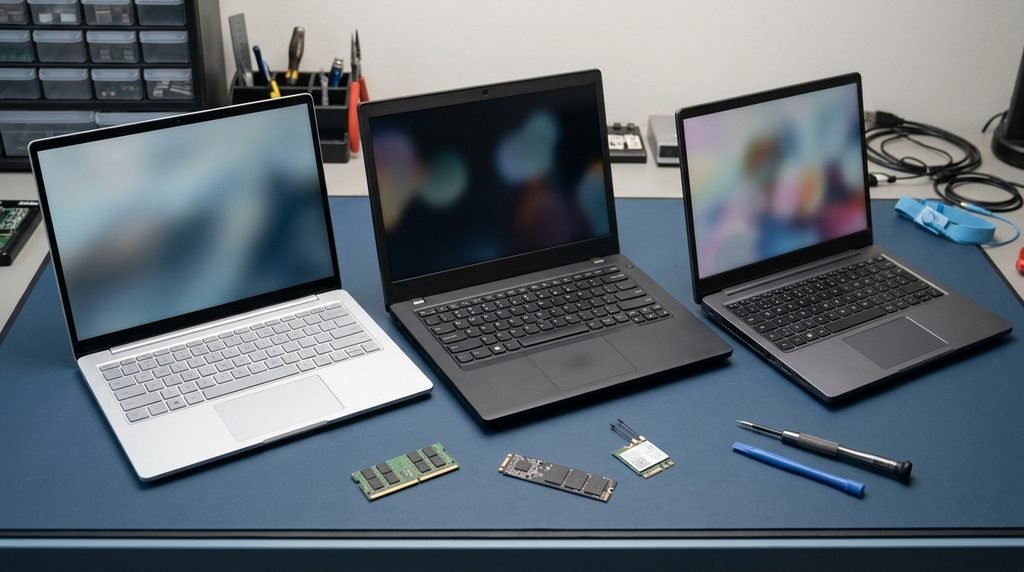
There is no universally best OSx86 laptop. The following models and families are research candidates, not guarantees of compatibility. Their suitability depends on the exact hardware configuration and the macOS version you intend to use.
Lenovo ThinkPad T480
The ThinkPad T480 appears frequently in community discussions about Hackintosh laptops. Its popularity makes it a reasonable starting point for researching documented configurations and troubleshooting experience.
However, different configurations can contain different wireless adapters, displays, and other components. Verify the processor and integrated graphics, inspect the exact wireless card, and look for reports that match the machine you plan to buy.
A successful report for one T480 configuration should not be treated as proof that every T480 will work identically.
Lenovo ThinkPad T14 Gen 1
The first-generation ThinkPad T14 is another model mentioned in community recommendations. As with the T480, verify the exact processor and graphics configuration rather than relying on the model name alone.
Check whether the particular version has a documented configuration for your intended macOS release. Also consider whether its wireless hardware can be supported and whether its other laptop features meet your needs.
Selected Dell XPS and Latitude models
Some Dell XPS and Latitude generations have been discussed by Hackintosh users because particular Intel-based configurations can be worth investigating.
The product family alone is not enough to make a decision. Compare the exact processor, integrated GPU, wireless adapter, BIOS options, and display configuration with documented results for the relevant macOS release.
Selected HP EliteBook models
Certain HP EliteBook configurations are also mentioned in community discussions. Their appeal depends on the specific generation and component selection, as well as the availability of reliable configuration guidance.
Before purchasing one, confirm that the evidence relates to the same hardware rather than a similarly named model with a different processor or wireless card.
How to compare candidate laptops
| Factor | What to verify |
|---|---|
| Processor | Exact model and generation |
| Graphics | Integrated GPU support for the target macOS version |
| Discrete GPU | Whether it is supported and how it is wired |
| Wireless | Exact Wi-Fi and Bluetooth chipset |
| Firmware | Available BIOS settings and documented configuration |
| Audio | Support for the internal audio codec and microphone |
| Power management | Sleep, wake, brightness, and battery reporting |
| Community evidence | Reports for the same model, hardware revision, and OS version |
Treat a laptop as a stronger candidate when multiple sources describe the same configuration, identify the macOS version, and explain which features work or remain limited.
Which macOS Version Should You Target?
Compatibility is always relative to a particular macOS release. A laptop that worked with an older version of OS X may not support a newer release, even if the installation process appears similar.
Before choosing an operating system, investigate:
- Whether the processor and graphics hardware have support for that release.
- Whether the required bootloader configuration is documented.
- Whether the wireless adapter and other important devices have suitable support.
- Whether known limitations affect applications you intend to use.
- Whether the configuration can be maintained as software and security updates change.
Avoid following installation instructions simply because they mention the same laptop family. Check their publication date, supported macOS version, and hardware details. Older instructions may depend on tools or patches that are no longer appropriate.
If you require the newest macOS features, security updates, or a dependable work computer, investigate the limits carefully before investing in a Hackintosh laptop.
How to Check a Laptop Before Buying
A short compatibility investigation can prevent a costly mistake.
Step 1: Get the exact specifications
Ask for the full processor name, graphics details, wireless adapter model, RAM configuration, storage type, and exact laptop model number. For a used laptop, photographs of the system information or hardware identifiers can help confirm the listing.
Step 2: Search for a matching configuration
Look for reports that match the processor, graphics, and other important components. Prefer detailed reports that identify the macOS release and describe both working and non-working features.
A brief claim that “macOS works” is not enough. Look for evidence about graphics acceleration, wireless networking, audio, sleep, battery life, and the built-in display.
Step 3: Read the hardware-specific documentation
Use the current OpenCore documentation and relevant component guides to understand known limitations. Check the guidance for the actual processor generation and GPU rather than copying an EFI configuration from a different machine.
A prebuilt EFI folder can be a useful reference, but it should not be assumed to be correct or safe for a different hardware configuration.
Step 4: Make a list of required features
Decide which functions you cannot do without. For example, a laptop for music production may require reliable audio, USB connectivity, and stable sleep behavior. A portable work machine may need dependable Wi-Fi, good battery life, and functioning brightness controls.
A configuration that is acceptable for experimentation may not be suitable for these uses.
Step 5: Plan for maintenance
A custom configuration can need attention when the operating system, bootloader, or drivers change. Keep backups and document any changes you make. Avoid updating a working system without checking whether the new release affects your hardware and configuration.
If you cannot tolerate downtime, choose a supported computer for essential work.
Is an OSx86 Laptop Worth It?
The answer depends on your reason for wanting one.
A Hackintosh laptop can be rewarding if you enjoy hardware research, operating-system configuration, and troubleshooting. It may also let you experiment with macOS on hardware you already own, provided that the hardware and applicable software terms permit your intended use.
It is less attractive if your main goal is simply to have a dependable laptop that runs macOS. Compatibility problems can consume time, and some features may never work as well as they do on supported Apple hardware.
Before spending money on a non-Apple laptop solely for this project, compare the total cost with a used or refurbished Mac that supports the applications and macOS version you need. Consider battery condition, warranty, repairability, software requirements, and expected service life—not just the purchase price.
Apple publishes software licence agreements for its operating systems. Review the agreement applicable to the version you plan to use rather than assuming that technical feasibility establishes permission.
Frequently Asked Questions
What is the best laptop for OSx86?
There is no single best model for every macOS release or configuration. Some ThinkPad, Dell, and HP models are worth researching, but the exact processor, graphics, wireless hardware, and firmware matter more than the brand name alone.
Is the ThinkPad T480 good for Hackintosh?
The T480 is a common community research candidate. That does not mean every configuration is compatible. Verify its exact hardware and look for documentation that matches both the configuration and the macOS version you want to run.
Can I use a gaming laptop for OSx86?
Possibly, but a powerful dedicated GPU does not guarantee good compatibility. Many laptop graphics configurations rely on switchable graphics that macOS cannot use as expected. Check the graphics arrangement and the support available for the specific model before buying.
Why does Wi-Fi sometimes fail after installation?
The built-in wireless adapter may use a chipset without suitable support for the selected macOS release. Identify the exact adapter and check its compatibility rather than assuming that any Wi-Fi 6 or Wi-Fi 7 laptop will work.
Does a successful installation mean everything works?
No. The system may boot while graphics acceleration, audio, sleep, battery reporting, Bluetooth, or other features remain broken or incomplete. Test the functions that matter to you.
Can I run the latest macOS on an OSx86 laptop?
Do not assume that you can. Support depends on the specific release, hardware, and configuration, and newer releases may introduce additional limitations. Consult up-to-date technical documentation before selecting a laptop or starting an installation.
Is a Hackintosh better than a used MacBook?
For experimentation and learning, a Hackintosh may be more interesting. For a dependable macOS computer with fewer compatibility uncertainties, a supported MacBook is often the more practical option. Compare total cost, required features, software compatibility, and maintenance time.
Final Verdict
The best OSx86 laptop is not necessarily the newest, fastest, or most expensive machine. It is the one whose exact hardware has credible compatibility evidence for the macOS version you intend to use—and whose limitations are acceptable for your needs.
Start by researching established Intel-based laptop configurations, pay particular attention to integrated graphics and wireless hardware, and verify every important feature before purchasing. Most importantly, treat compatibility reports as configuration-specific evidence rather than universal promises.
If your goal is to learn and experiment, the process can be worthwhile. If your priority is reliable daily use, compare the project honestly with buying a supported Mac before committing your budget and time.



[…] your laptop works normally but everything looks yellow or orange, start by turning off Night light and checking Windows color filters. If the screen has orange patches around its edges, or your […]